create new ticket
 check ticket status
Create a Parcel
From the Shipment window click on Parcels > New
Box
Choose a box from the dropdown or leave blank and manually fill in the following fields. To manage box options click on Settings > Dockets > Order Options > Shipping > Boxes
Name
The name of the box selected will auto populate
Dimension Units
Choose Millimeters, Centimeters, Meters, Inches, Feet, or Yards specific to the Length, Width, and Height
Length / Width / Height
If a box is selected these fields will auto populate. You can also manually enter these dimensions
Mass Units
Choose Grams, Kilograms, Ounces, or Pounds
Weight
Enter a weight for the Shipment.
Item Allocations
Item
The Order Item Name
Item Qty
The quantity of each item on the order
To Allocate
The quantity for each item that is available to allocate for shipment
Allocate
The quantity that is included in the shipment
Fill out the appropriate fields and then Click Save.
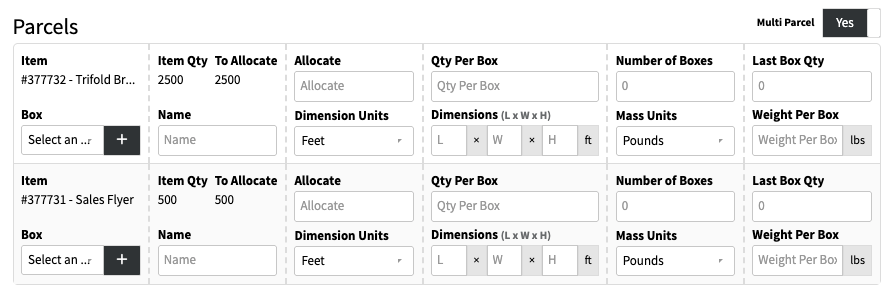
Multi Parcel
The Multi Parcel option gives you the ability to quickly build out Parcels for multiple order items on one screen.
From the Shipment window toggle Multi Parcel to Yes.
Fields that are specific to Multi Parcels are;
Qty Per Box
How many pieces fit in the selected box. By entering a value here and in the Allocate field the Number of Boxes and Last Box Qty fields will auto populate.
Number of Boxes
Auto fills based on the Allocate field and Qty Per Box
Last Box Qty
Auto fills same as above, lists the amount that is in the last box