
 create new ticket
 check ticket status
File Groups give you the ability to organize the files you add to an Order Item in a way that works best for your business.
Settings > Dockets > Order Options > File Group
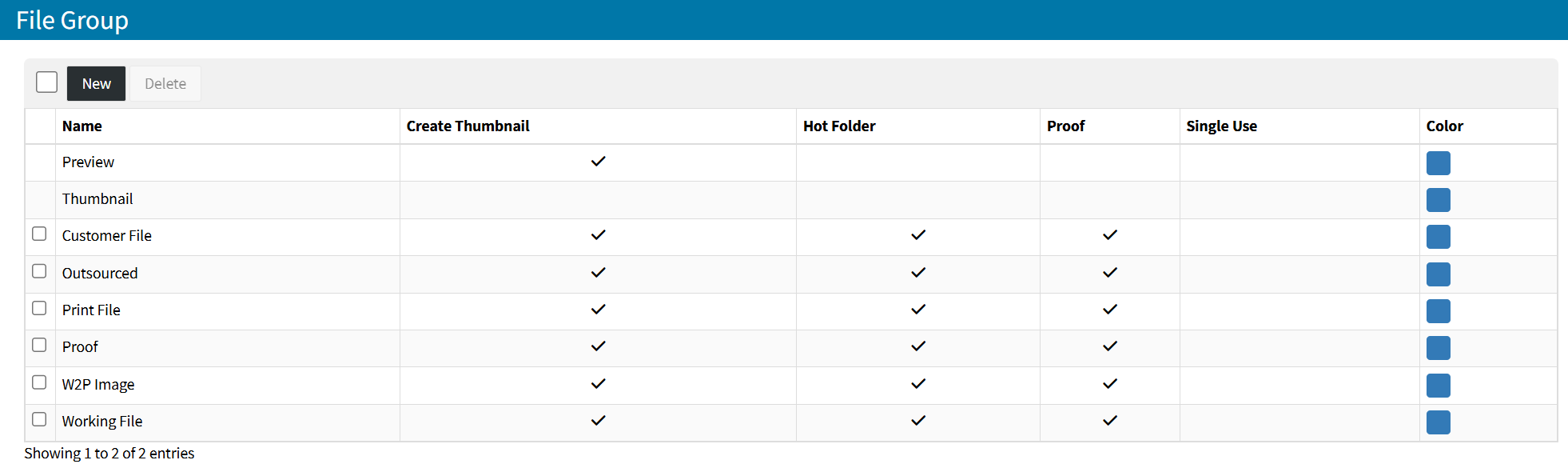
SYSTEM FILE GROUPS
DocketManager has two System File Groups that can't be removed or renamed that perform unique functions from all other File Groups.
- Thumbnail Files - This File Group can be used to display an image for an Order Item or Product Item, on the Online Ordering Portals, Point of Sale, Production Queue Views, in Generated Documents, or Canned Emails. This File can be automatically generated by the system, when another File Group File is uploaded, and has the "Create Thumbnail" setting enabled for the File Group.
- Preview Files - When a Product Item is created for Online Ordering a Preview File may be added to provide Online Ordering Users with Design Guidelines, Spreadsheet Templates or a Die Lines, allowing the User to download the preview file for reference. When they place and Online Order the Preview File will be attached to the Order Item.
YOUR FILE GROUPS
While DocketManager comes with an additional six File Groups, these can be altered to your preference, and more can be added as business requirements come up.
CREATING A NEW FILE GROUP
- {New} -
- File Group Name - The Name of the File Group, typically the purpose it serves within the system or business
- Create Thumbnail - Toggle to "Yes" if a Thumbnail file should be automatically generated when a File is Uploaded with this File Group selection
- Hot Folder - Toggle to "Yes" if Files of this File Group should be able to be send to a Hot Folder from DocketManager
Learn more about Hot Folders. - Proof - Toggle to "Yes" if Files of this File Group should be available to be Proofed out to the Customer
Learn more about Proofing Order Items. - Single Use - Toggle to "Yes" if Files of this File Group should be copied onto a Re-Quote, a Re-Order, or a Convert to Order
- Color - Select a unique Color for your File Group to easily distinguish between File's File Groups
EDITING A FILE GROUP
Once a File Group exists, it can be Edited by clicking the File Group Name.
DELETING A FILE GROUP
Once a File Group exists, it can be Deleted by selecting the File Group from the File Group List and clicking the {Delete} button.
REORDERING FILE GROUPS
Define the sort order of file groups in your system order items. Drag and Drop File Groups using the {Up/Down Arrow} Icon located to the right of each File Group Checkbox when hovering over the File Group Name.