
 create new ticket
 check ticket status
The Variable Data Print Product Editor allows the end user to import data via .csv file to populate one or multiple records.
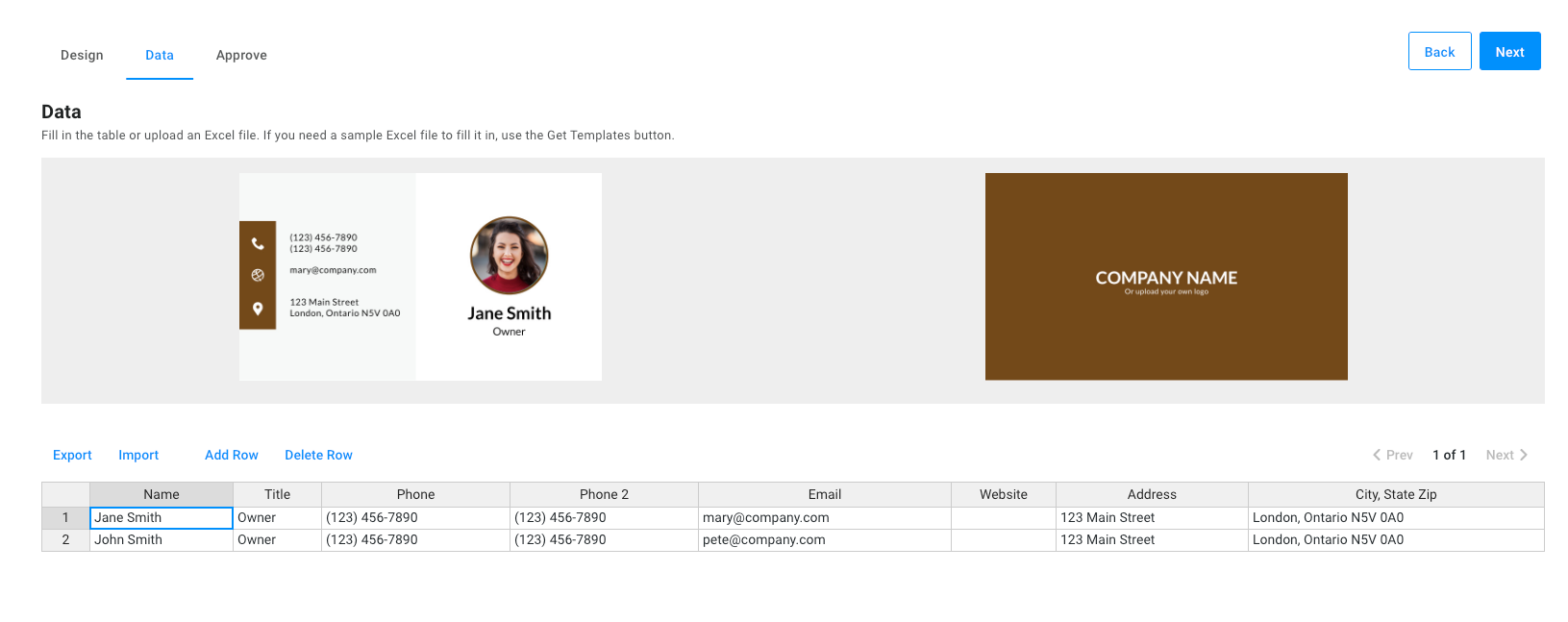
Step 1 - Import a Design
- From Online Ordering > Variable Templates New
- Click on Assets > Designs
- Click on New > Import (a sample file is available at the bottom of this article)
- Right-Click on the Design to Rename your design to "Business Card (Variable Data)"
Step 2 - Prepare the Design
- Double Click on the Design to edit
- Change the artwork field text to match the column headers in the csv file
- For example {{Name}}, {{Title}}, {{Phone}}, {{Phone 2}}, {{Email}}, {{Website}}, {{Address}}, {{Address 2}}
- Click Save in the top right corner, and close the window.
Step 3 - Product Specifications
- Go to the Prod. Specifications tab, and click the Create New button in the top right corner.
- Name > "Business Card (Variable Data)"
- Personalization Workflow > Variable Data Print Product Editor
- In the Attributes section select the design Business Card (Variable Data)
- Uncheck "Allow users changing a design layout"
- Save
Step 4 - Test
- Click the Preview button to preview what your customers will see online.
Step 5 - Link to Product
- In the DM Navigation Menu go to Settings > Online Configuration > Products
- Locate or Create a Product
- Edit the Product
- Enable Edit Mode
- Online > Variable Template > Select the Product Specification from the dropdown list.