create new ticket
 check ticket status
DocketManager pricing can be broken down into three key elements; Stocks, Presses, and Department Items. Department Items encompass everything from static Preflight to Price Per Piece or Hourly charges. When you are creating a Department Item ask yourself two questions;
- What rate do you charge?
- Why do you charge that rate?
- Preflight - Static Charge (No Lock To)
- Platemaking - Per Plate (Locks to Plates)
- Trifold - Per Finished Sheet (Locks to Total Finished Sheets)
- Die-Cut - Per Press Sheet (Locks to Press Sheets)
When Press Sheets are cut in half to fit a smaller Die, the Lock To Modifier is utilized. See Lock To Modifiers below.
Settings > Dockets > Department Items > {New}
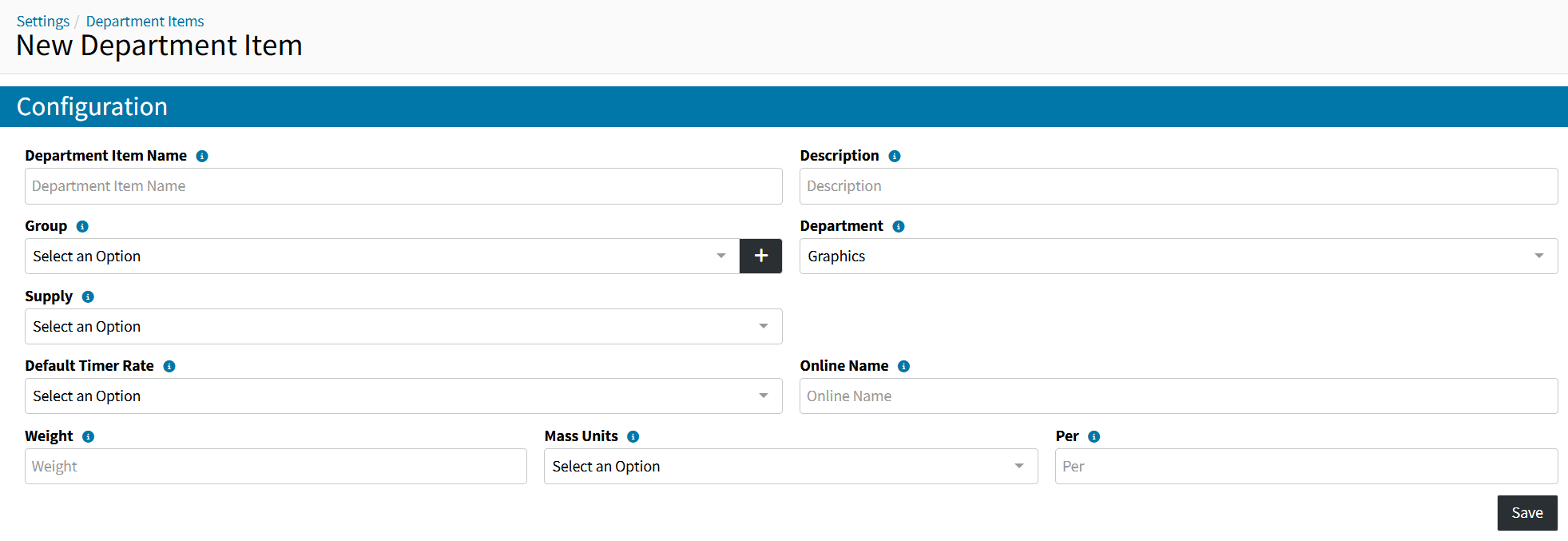
CONFIGURATION
- Department Item Name - The name of the Activity being performed or the charge that is being applied
- Group - A customizable field that allows you to group Department Items together to organize them and easily search and filter for them later
- Department - A preset dropdown of selections that dictate where this Department Item charge will fall in the pricing table of a Quote/Order Item
- Click the {Save} Button to proceed with Pricing the Department Item

PRICING - LOCK TO - FORMULAS
Why do you charge that rate?
At the top of the Pricing settings of the Department Item Setup is the Lock To dropdown menu. The Lock To Function determines which field or set of fields the pricing locks to.
- In a New Tab, Navigate to:
Settings > Dockets > Department Items > Lock To Formulas
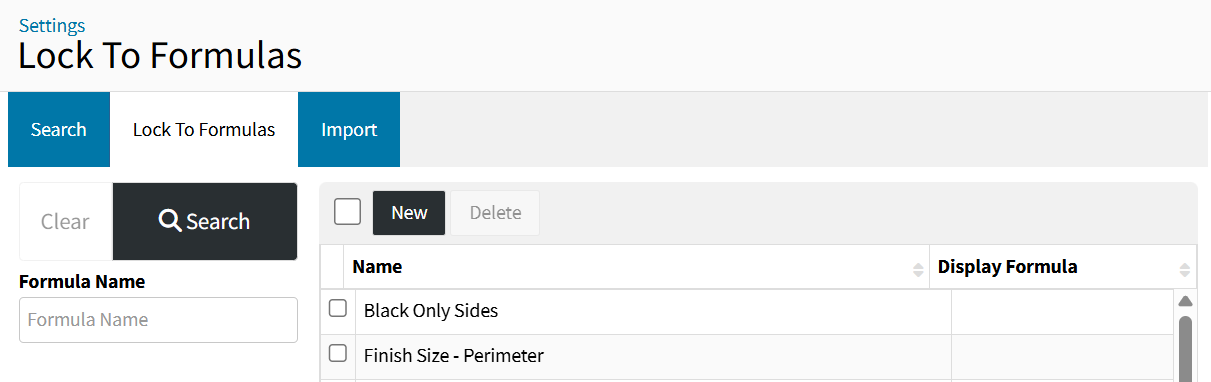
- Click on the {Total Finished Sheets} Lock To Formula
- Variables - The fields from a Quote/Order Item that the pricing of a Department Item is Locked To. Multiplying the variables together to define the desirable amount.
- Quantity - The Quantity of the Quote/Order Item
- Sheets - This is the number of physical sheets required to make one finished item
Do not confuse this field with Press Sheets. - Versions - This is the number of different pieces of artwork with the same specs
Example: 2 Names of Business Cards = 2 Versions. - Sets - This is the number of times artwork repeats itself in one item
Example: pads of 50 would require 50 Sets and the Quantity field would be the number of pads being ordered. - Multipart - The number of parts the stock is comprised of
Example 2part NCR = Multipart 2.
- Variables - The fields from a Quote/Order Item that the pricing of a Department Item is Locked To. Multiplying the variables together to define the desirable amount.
The combination of the variables makes the Total Finished Sheets Lock To Formula always accurate. When the Quantity is 100, and all other variables are at 1, then the Total Finished Sheets is 100. But when one or more of those variables increases, the Lock To Formula will multiply by them to account for every single Finished Sheet of the Quote/Order Item.
You may say that Trifold doesn't apply to anything that will be Multipart, and you're right. The multipart element won't hinder Trifold, as the Department Item of Trifold won't be added on a Quote/Order Item that contains any Multipart, and the Multipart variable will remain at 1, not adding to the multiplication. But when you need Total Finished Sheets to Drill through 2 versions - for 25 sets of 50, 3-part NCR, all 7,500 sheets of the NCR will be accounted for in your Drill Department Item.
- Click on the {Quantity} Lock To Formula
The Quantity Lock To Formula only takes into account the Quantity field variable of a Quote/Order Item.
When it comes down to Bindery Department Items, the Quantity and Total Finished Sheets Lock To Formulas are the two most commonly used Lock To Options. It does really depend on why you charge the charges that you charge. Lamination could be based on Total Finished Sheets, $1.00 per laminated Sheet of any kind, but it could also be based on the Run Size Sqft, being the total square footage of all the press sheets, with a charge of $0.50 per sqft.
Static Charges
A charge such as Preflight may not require a Lock To if it is only charged once on a Quote/Order Item.
- Lock To - Leave as "Select an Option"
- Quantity - "1"
- Setup Price - Enter the Static Amount you want to charge
- Setup Cost - If you want to track the internal cost of labor for this activity enter an amount
Price Per Piece
The Lock To Formula becomes the "Piece" in the [Cost/Price Per Piece] fields.
Example Lock To Formulas and their Pieces:
- Total Finished Sheets - Per Each Finished Sheet
- Press Sheets x Sides - Per Each Printed Side of a Press Sheet
- Plates - Per Plate
- Flat Size Sqft - Per 1 Sqft
For the Trifold Department Item we can charge a per piece rate for Each Finished Sheet.
- Lock To - Total Finished Sheets
- Price Per Piece > {New} - Click {New} to add a New Price Per Piece Scale
- Pieces Up To (and beyond, from the previous scale level or 0) - Up to and Beyond this number of Pieces the defined [Price Per Piece] will be utilized
- Price Per Piece - Enter the Price Per Finished Sheet you want to charge, then click {Save}
If you want to track your Internal Cost of Goods/Labor Per Piece, the Cost Per Piece Scale can be setup the same way as the Price Per Piece Scale above.
Price Per Hour
The Lock To Formula becomes the "Pieces" in the [Pieces Per Hour] field.
For a Die-Cut on a Cylinder Press Department Item we can charge an hourly rate.
- Lock To - Press Sheets
- Pieces Per Hour - Number of Press Sheets Die-Cut Per Hour
- Setup Time - Input the number of Minutes it takes to setup the Cylinder Press to Die-Cut
Charged based on the Utilized Price Per Hour Scale.
Alternatively the [Setup Price] field is an available option. - Price Per Hour > {New} - Click {New} to add a New Price Per Hour Scale
- Pieces Up To (and beyond, from the previous scale level or 0) - Up to and Beyond this number of Pieces the defined [Price Per Hour] value will be utilized
- Price Per Hour - Enter the Price you want to charge Per Hour, then click {Save}
If you want to track your Internal Cost of Labor Per Hour, the Cost Per Hour Scale, can be setup the same way as the Price Per Hour Scale above.
When a Lock To Formula is selected you can utilize any combination of Cost and Price Scales in addition to a Setup Cost and/or Price.
When no Lock To Formula is selected you are typically going to utilize Setup Cost and/or Setup Price for a Static Charge.
There could be an instance where you need to charge a Per Piece or a Hourly Rate for an activity that is unrelated to a possible Lock To Formula, where a Lock To Formula would not be selected but the combination of Cost and Price Scales in addition to a Setup Cost and/or Price would be utilized and a manual [Quantity] field overwrite of the Department Item would occur at the Quote/Order Item Level.
Waste
Department Item Waste will add additional Press Sheet Waste to the Quote/Order Item, no matter the Lock To Formula selected. Account for Wasted Press Sheets by adding Waste Scales based on Flat and/or Percentage amounts.
- {New} - Click {New} to add a New Waste Scale
- Press Sheets Up To (and beyond, from previous scale level or 0) - Up to and beyond this Number of Press Sheets, this Waste Scale will be utilized
- Flat Waste - Number of Waste Press Sheets to be added
- Additional Overs - Percentage of the Quote/Order Item Press Sheets to be added as Waste
Lock To Modifiers
The Lock To Modifier dropdown menu option won't have any impact onto the Department Item Pricing if no Modifier Amount is entered. Lock To Modifiers are utilized when you want to modify your Lock To Formula output by a defined multiple.
- Shrink Wrapping in 500s - Total Finished Sheets - Divide By 500
- Die-Cutting - Specific Job requires Press Sheets to be cut in half for Die-Cutting - Manually Adjust at the Quote/Order Item Level to Multiply by 2
Digital Double Sided Laminating
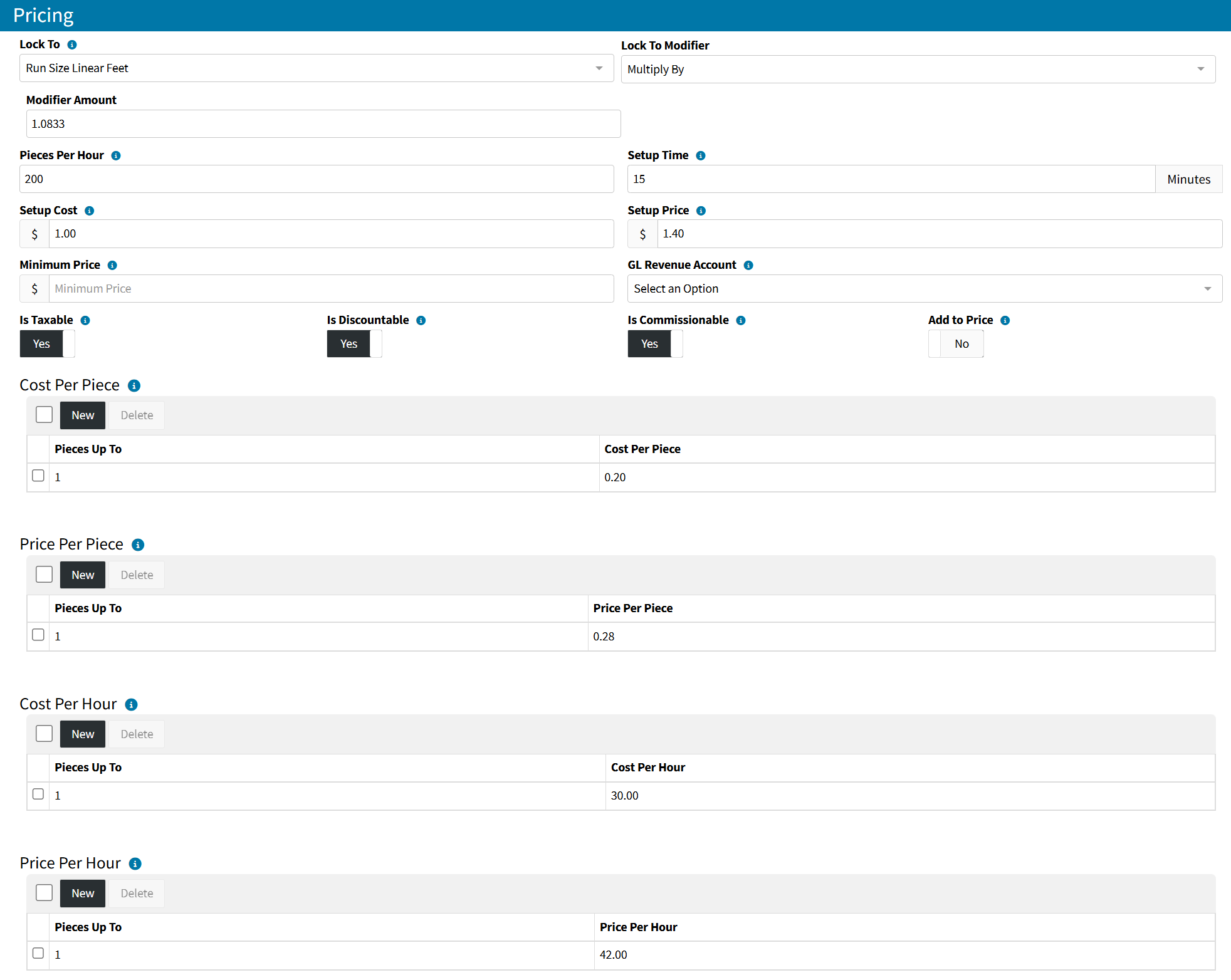
Below is an example of a Digital Double Sided Lamination Department Item Pricing Configuration - Priced By Press Sheets Linear Feet
- Lock To - We will be charging per Linear Foot of the Press Sheet - "Run Size Linear Feet"
The Run Size Linear Feet Formula was manually setup with Press Sheets and Run Size Width Variables - Lock To Modifier - "Multiply By"
- Modifier Amount - The Laminator doesn't run the Linear Feet of the Press Sheets exactly one after another, the operator tends to add a small gap between each Press Sheet when laminating. We are multiplying our Run Size Linear Feet, by 1.08333 to add approximately 1" to every Press Sheet Width Linear Foot as we tend to mostly laminate 11x17s, 12x18s, and 13x19s, passing the Width of the Press Sheet through the laminator
- Pieces Per Hour - The laminator can process 200 Linear Feet Per Hour
- Setup Time - It takes the operator on average 15 minutes to setup the laminator
- Setup Cost - Setting up the laminator will consume a few linear feet of laminate material so we expense an extra $1
- Setup Price - Setting up the laminator will consume a few linear feet of laminate material so we charge an extra $1.4
- Cost Per Piece - Laminate Material Cost per Linear Foot
- Price Per Piece - Laminate Material Cost marked up 40% per Linear Foot
- Cost Per Hour - Labor Cost Per Hour
- Price Per Hour - Labor Cost Per Hour marked up 40%