
 create new ticket
 check ticket status
This Article Has No Back Button, Please Toggle the Help Side Panel Off/On to Return to previous Help Page.
Tasks are a great way to set To Do's for yourself or other Active Users in DocketManager. Tasks can be generic or they can be associated with Orders, Quotes, Items, Customers or Contacts. Any associated Task will be displayed in the Tasks Block on the page of the associated Object. To ensure no task is lost or forgotten throughout the system, all incomplete tasks assigned to Active Users are located on their Dashboard, or can be found in the Tasks Side Panel.
- Active Users can be assigned to Tasks when the Task is created, or when a Task is edited later on.
- Tasks can be reassigned to other Active Users if the initial Active User is unable to complete the Task.
- Only one Active User can be assigned to a task at a time.
- The User who was Assigned a Task is notified with an Alert when a Task has been Assigned to them.
- The Active User who Assigns a Task is notified with an Alert when the Task is Completed.
- Overdue Tasks display a Red Due Date.
- All Active and Completed Tasks are logged in the system Settings > Communications > Tasks.
ASSOCIATED ITEM'S TASK BLOCKS
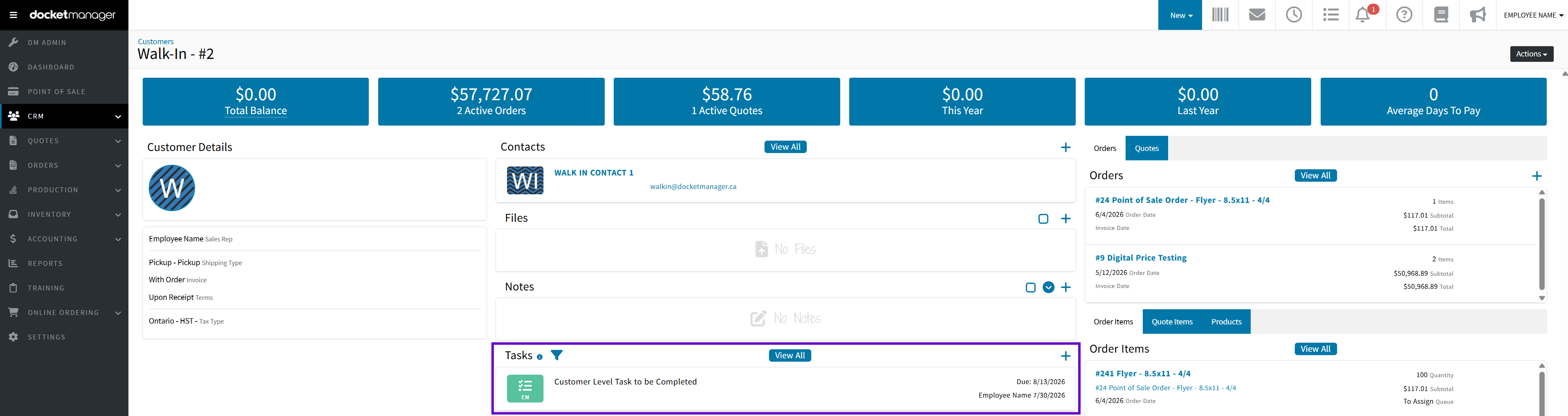
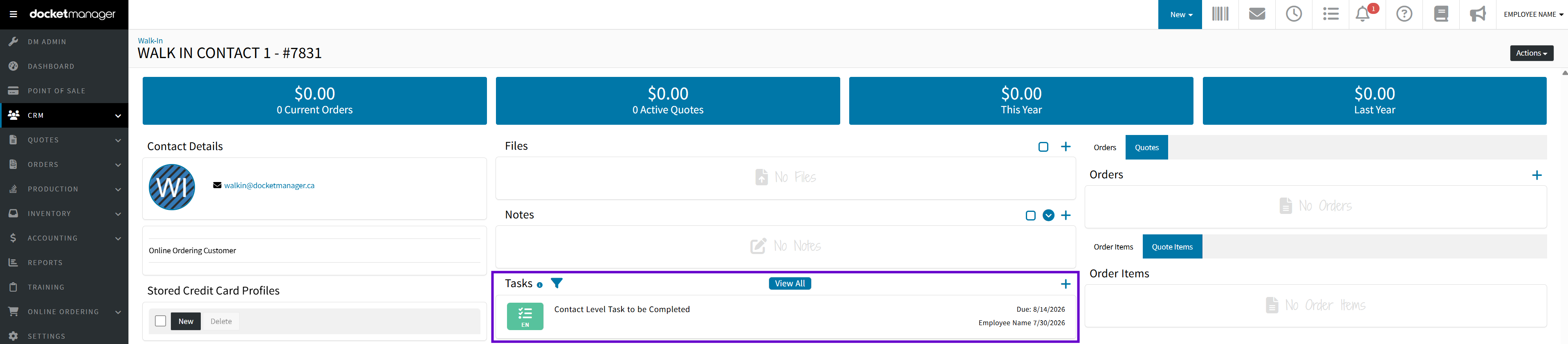
Tasks associated with an Order, Quote, Item, Customer or Contact can be found on the objects page.
Order Level / Quote Level > Tasks Block
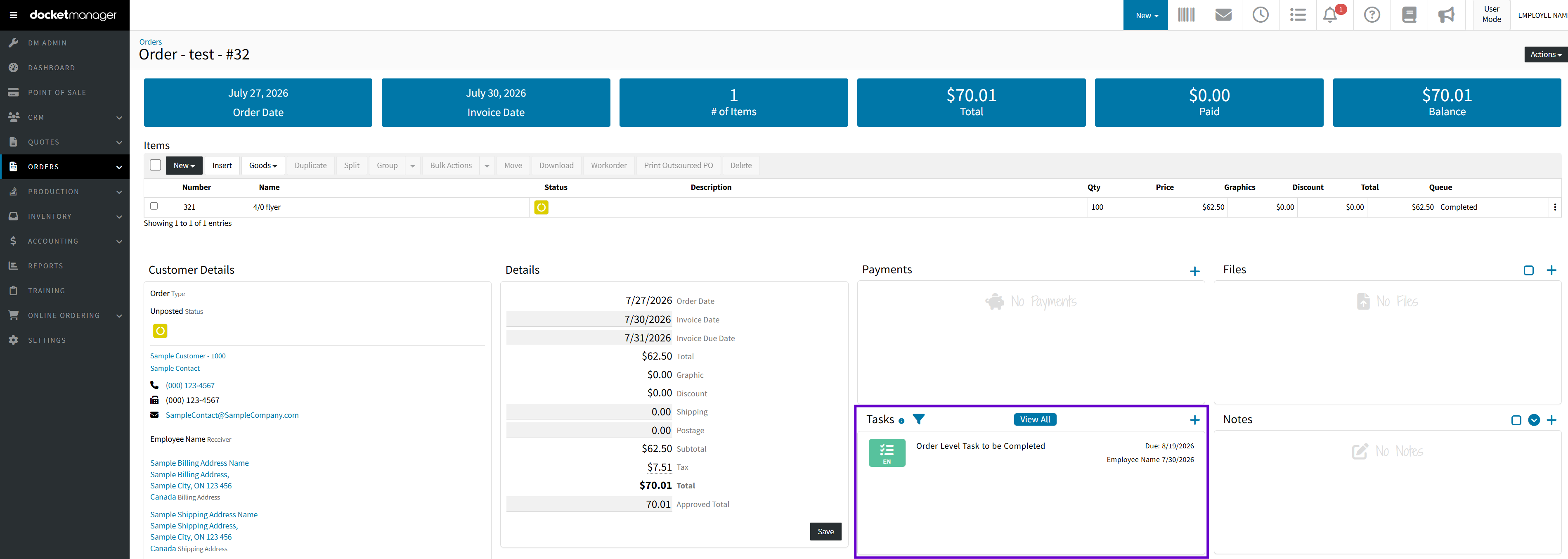
Order Item / Quote Item > Tasks Block

Customer Level > Tasks Block
Contact Level > Tasks Block
ADDING A NEW TASK
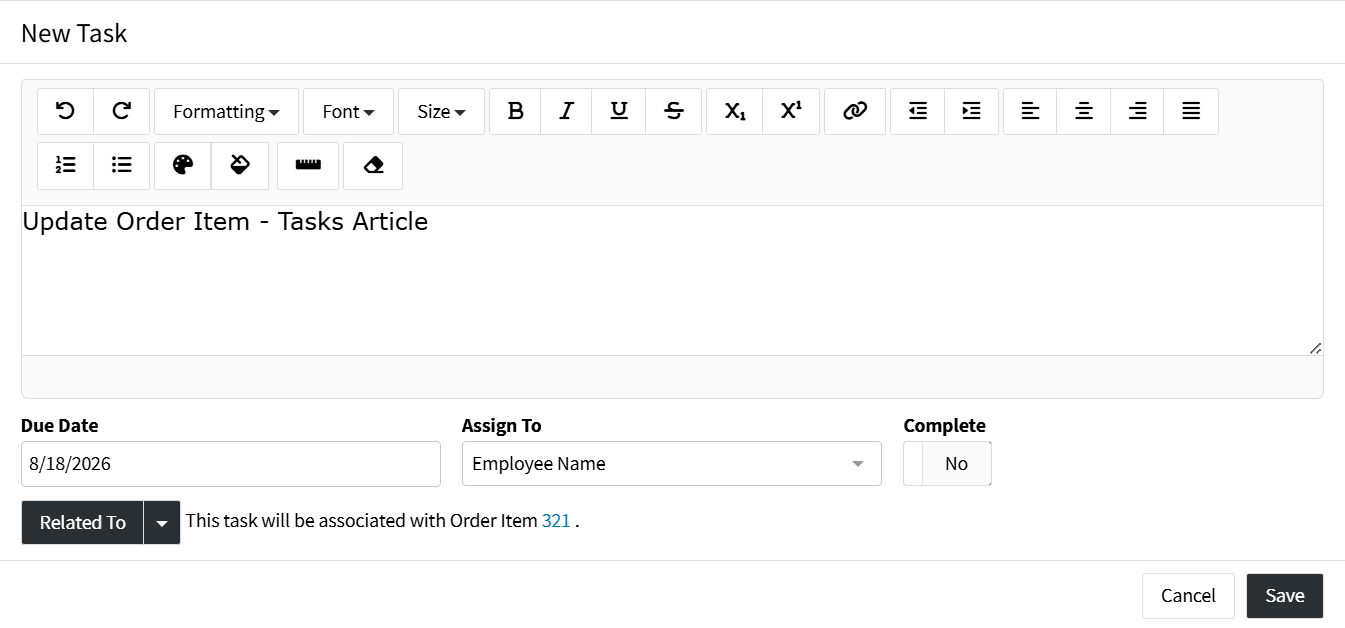
- Clicking the {+} Icon at the top right of a Tasks Block will bring up the New Task Modal.
- Describe the Task to be performed.
- Select a Due Date for the Task.
- Optionally Assign an Active User to complete the Task.
Learn more about Active Users. - If you are writing the task up for historical tracking reasons, you can toggle the task to Complete: "Yes"
- You can now {Save} the Task.
TASK ACTION OPTIONS
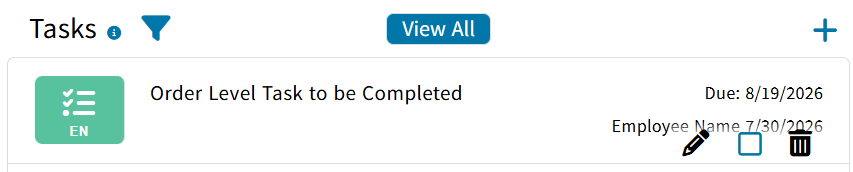
Each Task in the system has three action options to choose from when hovering the mouse over the Task.
EDITING A TASK
Once a Task exists, it can be Edited by clicking the {Pencil} Icon when hovering over the Task.
COMPLETING A TASK
After finishing a Task, you can mark it completed by clicking the "Mark as Complete" checkbox when hovering over the Task.
DELETING A TASK
Once a Task exists, it can be Deleted by clicking the {Trash} Icon when hovering over the Task.
YOUR TASKS
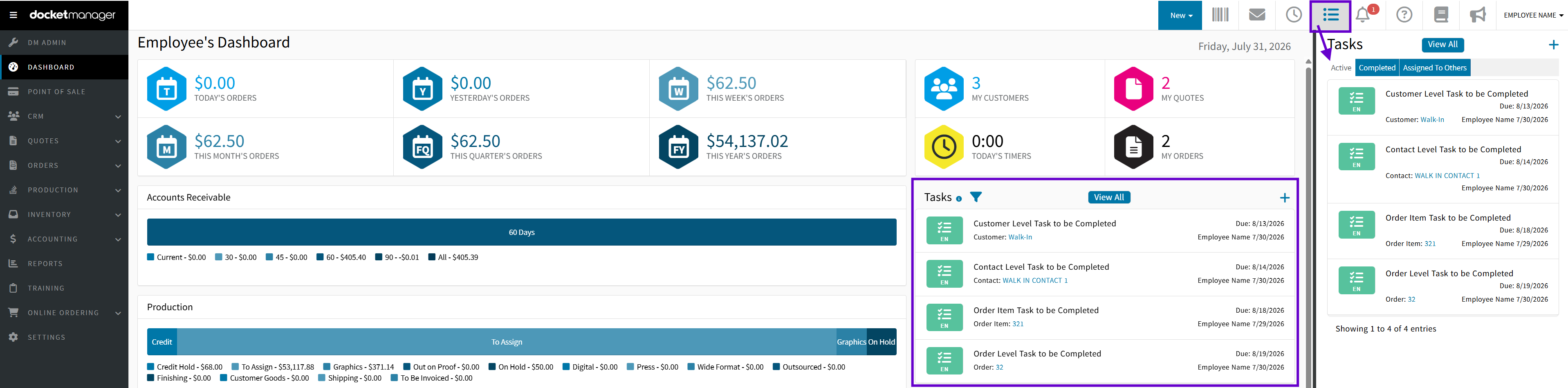
Tasks assigned to you can be easily located at the Dashboard or the Tasks Side Panel, both having Quick Links available when a Task is associated with either Orders, Quotes, Items, Customers, or Contacts.
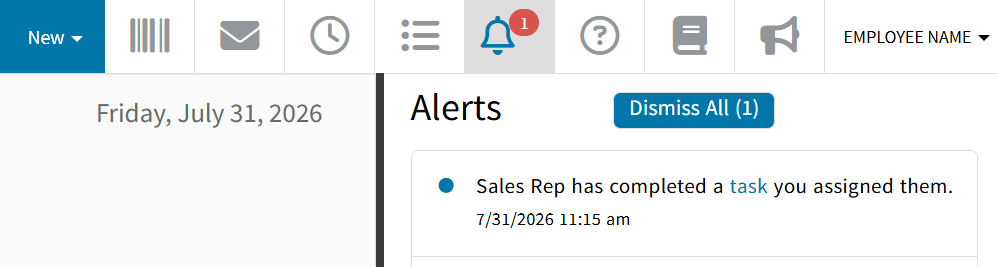
- An Alert is generated when a new task has been assigned to you. Check your System Alerts in the Alerts Side Panel to view what Task has been Assigned to you, by clicking the "Task" Quick Link
FILTERING TASKS
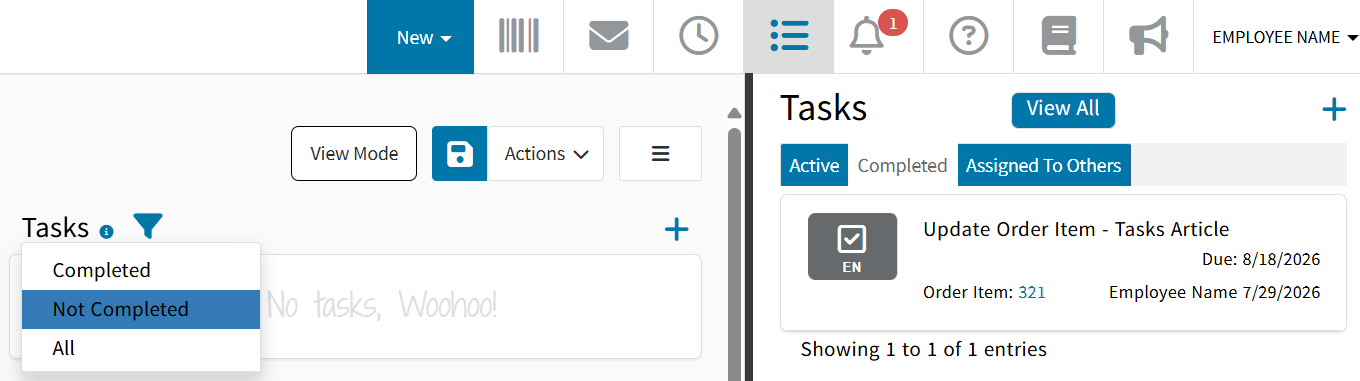
Tasks associated with an object can be filtered with the {Funnel} Icon to either Completed, Not Completed, or All.
Tasks located in the Tasks Side Panel can be filtered for Active, Completed, or Assigned To Others.
OUTSTANDING TASKS YOU'VE ASSIGNED TO OTHER ACTIVE USERS
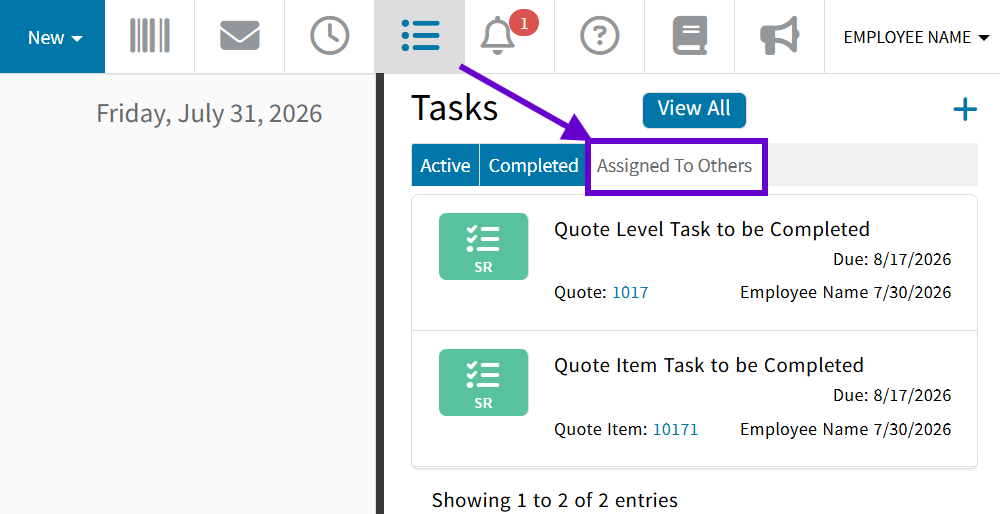
Incomplete Tasks you've assigned to other Active Users can be found in the "Assigned To Others" tab of the Tasks Side Panel
COMPLETED TASK ALERTS
When an Active User marks a Task you've assigned to them as Completed, you will receive a system alert. Check your System Alerts in the Alerts Side Panel to view what Task has been Completed, by clicking the "Task" Quick Link.
Learn more about Alerts.
SYSTEM TASK HISTORY OF ACTIVE AND COMPLETED TASKS
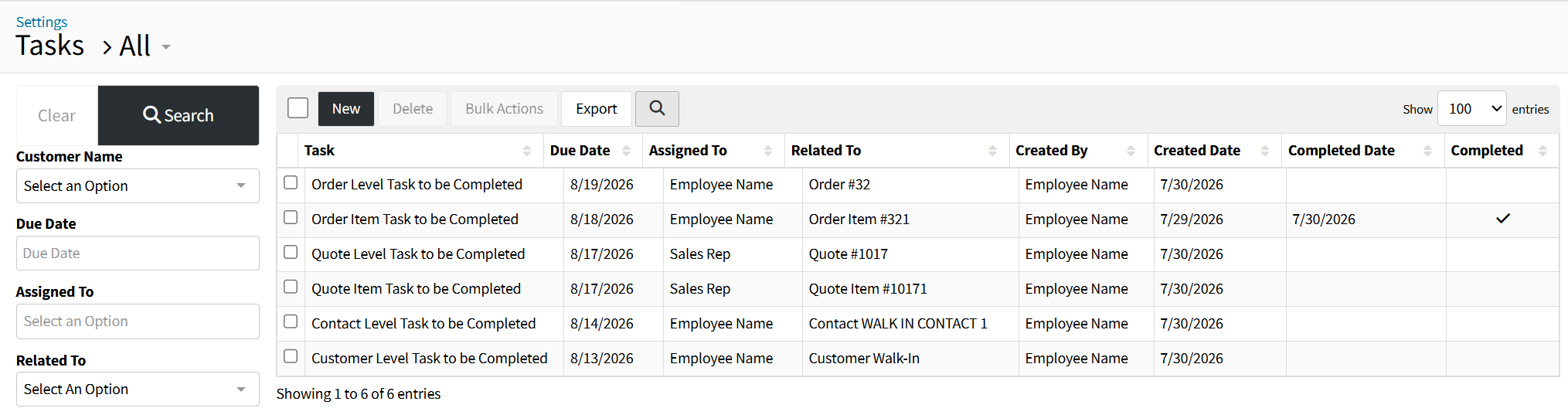
DocketManager keeps a record history of all Active and Completed Tasks.
Settings > Communications > Tasks
Search Filters Panel
Filter your Task list by the available fields to narrow down your Task list to a specific criteria to quickly access the Task(s) you want to review, edit, or complete.
{New}
Opens the New Task Modal to create a New Task.
{Delete}
Deletes the selected Task(s).
{Bulk Actions}
Quickly update the Due Date, Assigned To Active User, or the Completed State of one or more Selected Tasks without having to edit them individually.
{Export}
Exports all Tasks from the Task List depending on the Currently Filtered Search.
{Toggle Search Filters Magnifying Glass}
Temporarily hides the Search Filters Panel, to expand the Product List View, until the page is refreshed.
Task List Table
- Task - The beginning of the Task Description. Clicking onto opens the Task Edit Modal
- Due Date - The Date the Task should be Completed by
- Assigned To - The Active User who should Complete the Task
- Related To - The system object the task is associated with. Clicking onto opens the associated object's page
- Created By - The Active User who created the Task
- Created Date - The Date the Task was created
- Completed Date - The Date the Task was Completed
- Completed - An indicator if the Task is Completed