
 create new ticket
 check ticket status
This Article Has No Back Button, Please Toggle the Help Side Panel Off/On to Return to previous Help Page.
Notes can be added to Customers, Contacts, Orders, Quotes, Order Items, Quote Items, Stocks, Supplies, Customer Goods, Vendors, Suppliers, Template Options, and Press Configurations for internal documentation purposes. Notes can function differently depending on where they have been created. The Note Functionality Breakdown at the bottom of this article defines the notes behavior based on where the note is created.

ADDING A NOTE
- Clicking the {+} Icon in the top-right corner of a Notes Block will bring up the New Note Modal.
- Select a Note Label from the Label dropdown
- When the toggle option to make a Note Sticky is available, toggle to "Yes" to make the note copy onto Quotes, Orders, Quote Items, and Order Items, respectively where the Note's Location is relative.
- When the Type Dropdown option is available, select a Note Type to define where the note will appear on relative Quotes, Orders, Quote Items, or Order Items.
- Enter the Note Message, and {Save} the Note.
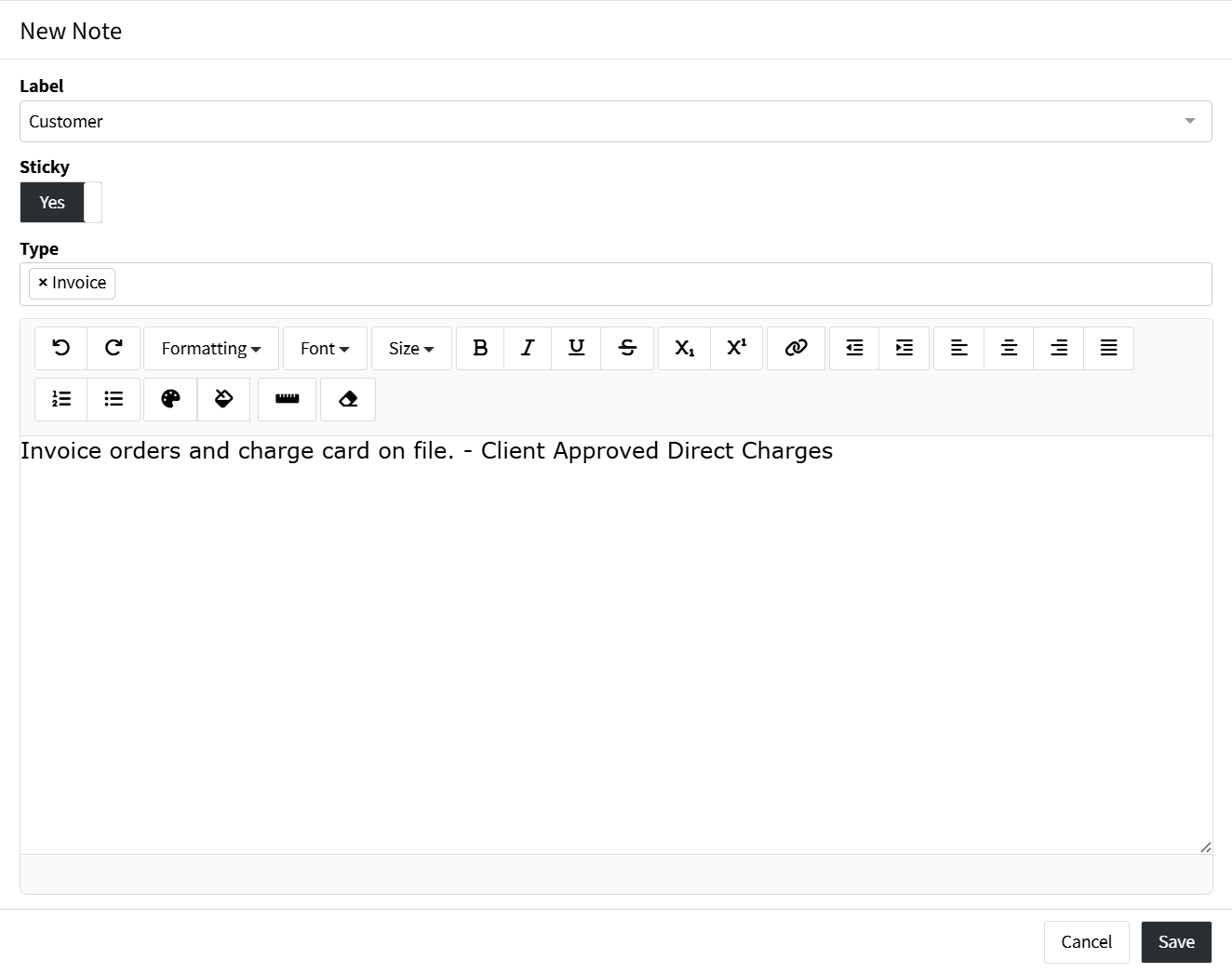
- Note Label - Allows you to add customization to the Note, visual color coding, a label, and a Single Use functionality toggle option. Note Labels can represent the urgency of a Note, who the Note is derived from, a Note's purpose, or even a subcategory of a Note Type; "Customer", "Important", "Pre-Press", "Design" etc...
Learn more about Note Labels. - Sticky Notes - When a Note is Toggled to be Sticky: "Yes", the Note will be copied onto relative Quotes, Orders, Quote Items, or Order Items.
- Note Type - The selected Note Type determines where the Note will appear on relative Quotes, Orders, Quote Items, or Order Items.
- Order Level Note Types
- Generic
- Invoice
- Shipping
- Item Level Note Types
- Generic
- Graphics
- Press
- Finishing
- Outsourced
- Shipping
- Order Level Note Types
EDITING A NOTE
Once a Note exists, it can be Edited by clicking the {Pencil} Icon when hovering over the Note.
DELETING A NOTE
Once a Note exists, it can be Deleted by clicking the {Trash} Icon when hovering over the Note.
NOTE BLOCK'S FUNCTIONALITY BREAKDOWNS
| Note Location | Sticky Option | Type Enabled | Type Option | Function |
| Customer View | Yes | Yes, if Sticky is True |
| If sticky is set to "Yes", the Note will copy to any Order or Quote that is created from New, Re-Order or Convert for that Customer. If the Customer is changed, or the Order/Quote is Re-Ordered or Converted the Notes will be removed and re-added based on the current Customer selection, if there are any. A split will retain the Notes of the original order. |
| Contact View | Yes | Yes, if Sticky is True |
| If sticky is set to "Yes", the Note will copy to any Order or Quote that is created from New, Re-Order or Convert with that Contact. If the Contact is changed, or the Order/Quote is Re-Ordered or Converted the Notes will be removed and re-added based on the current Contact selection, if there are any. A split will retain the Notes of the original order. |
| Order View | No | Yes |
| Notes will display on the Order page. These Notes will copy onto any Re-Order or Convert to Quote if the Note Label is not Single Use. |
| Quote Item or Order Item View | No | Yes |
| Notes will display on the Quote Item or Order Item page. These Notes will copy onto any Re-Order or Convert to Quote if the Note Label is not Single Use. |
| Stock View | Yes | No | (Copies to Quote Items or Order Items as a Press Note) | If sticky is set to True, the notes will copy to the Order Item when that Stock associated. If the Stock is removed or changed, the notes will be removed and added back based on the current Stock selection, if there is one. |
| Supplies View | No | No | Notes will only display on Supply view page. | |
| Customer Goods View | No | No | Notes will only display on Customer Good view page. | |
| Vendor View | Yes | No | (Copies to Quote Items or Order Items as an Outsourced note) | If sticky is set to True, the notes will copy to the Quote Item or Order Item when that Vendor is added in the Outsourced section. If the Vendor is removed or changed, the notes will be removed and added back based on the current Vendor selection, if there is one. |
| Supplier View | No | No | Notes will only display on Supplier view page. | |
| Template Option Edit | No | Yes |
| When a Template Option is inserted into a Quote or Order, the notes will copy to the Item. If the template is changed or refreshed the notes are removed and added based on the current Template Option selection. |
| Press Configuration | Yes | No | (Copies to Quote Items or Order Items as a Press note) | If sticky is set to True, the notes copy to the Order Item when that Press is selected (loaded by a template or manually set). If the Press is removed or changed, the notes are removed and new notes are added based on the current Press selection. |