create new ticket
 check ticket status
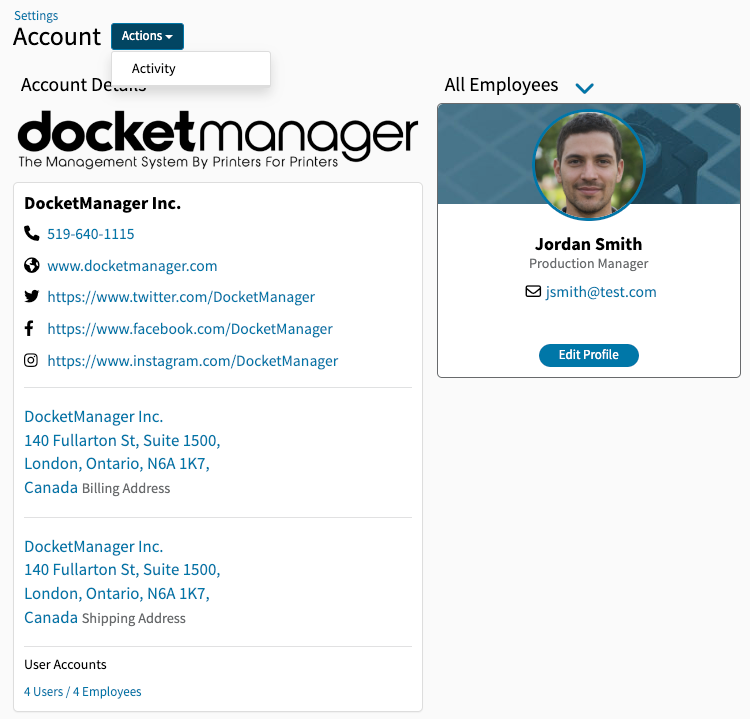
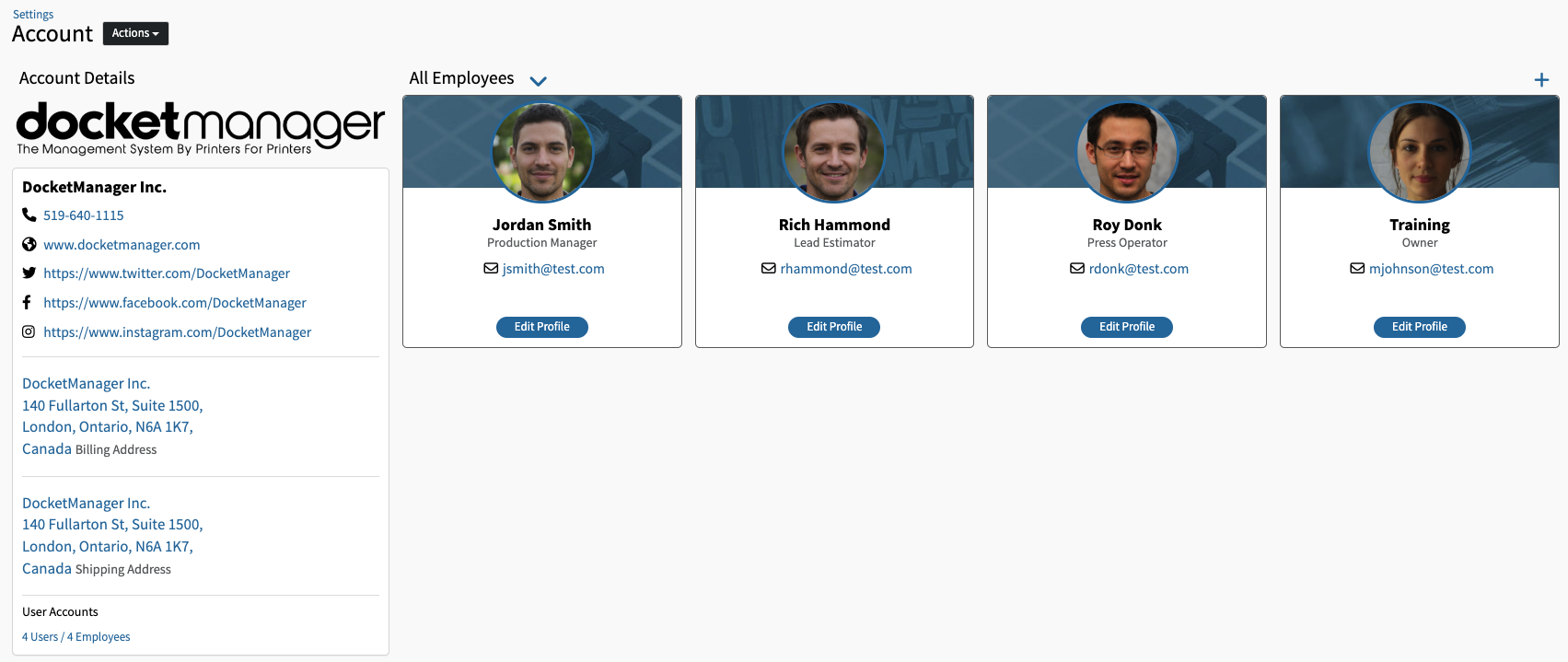
DocketManager users can be added or deleted at Settings > Admin > Account
- Setting a Username and Password for a user will create a new active user in your system, increasing your monthly subscription rate.
- To make a user selectable in the system dropdown menus such as "Sales Rep", "CSR", or "Graphic Artist", toggle the Selectable setting to Yes when editing the user's Login Section.
ADDING USERS
Settings > Admin > Account
- On the right hand side of the page click on the + icon.
- Complete the General, Login, and Production sections (See below for section breakdown)
- Click Save
GENERAL SETTINGS
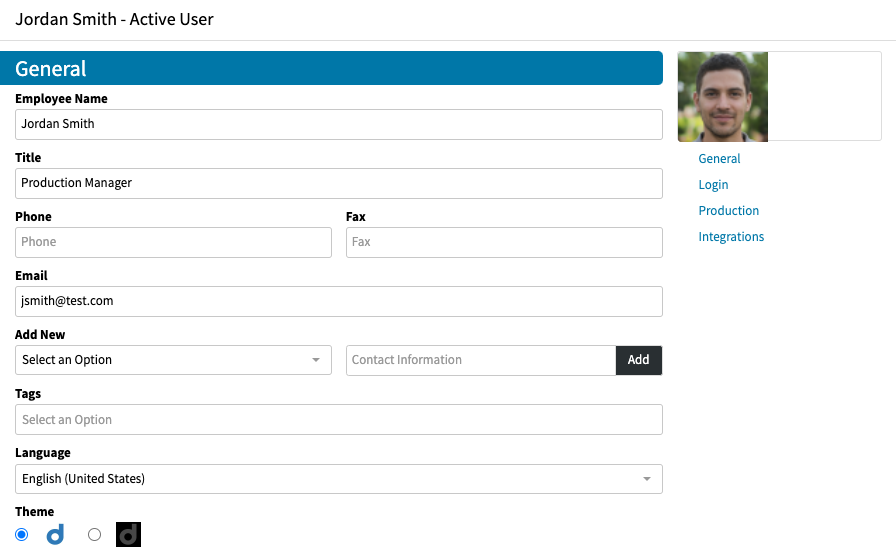
This section allows you to input general information specific to the User. The email field is used to send emails from the system as well as 2 Factor Authentication at log in. A user can only specify one email address. At the bottom of the General Settings there is also an option for Dark Mode.
LOCATION SETTINGS
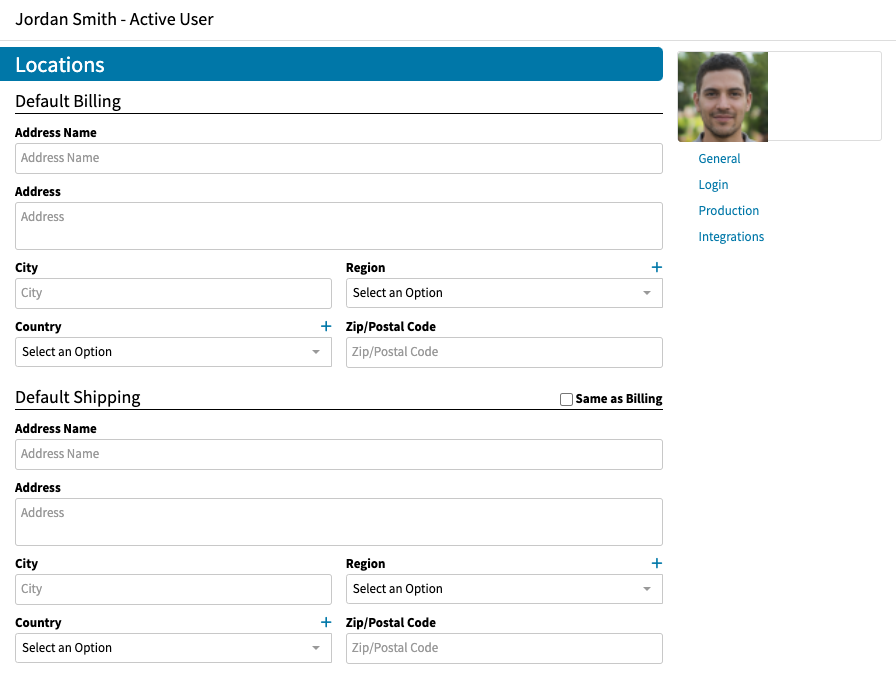
If these fields are left blank the system will utilize the Billing and Shipping Address information from the Account Details of your Company.
LOGIN SETTINGS
In order for a user to be available in the system they will require a Role, Username, Password and be marked as Selectable.
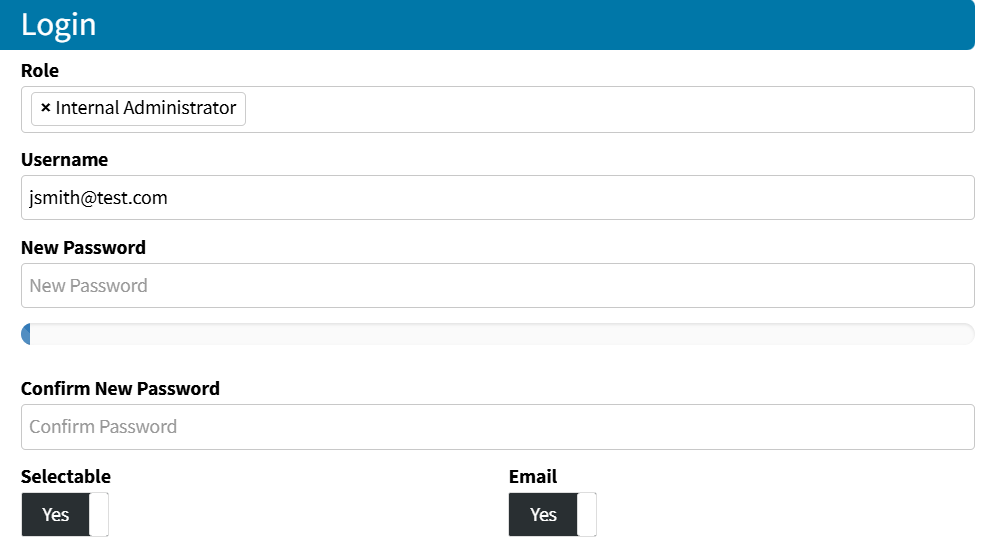
Role
Select one Security Role per user to avoid conflicts.
Username
Enter a Username for the user.
New Password
Must contain at least one letter and number.
Confirm Password
To confirm, re-enter the password.
Selectable
Determines if a user will appear in employee related dropdowns, such as CSR, Graphic Artist, or Sales Rep, assigned on a quote/order throughout the system.
Non-Selectable users are still tracked and associated in the system for activities such like order item production queue movement history, and created notes or payments.
Determines if this user's email should be an available option for the "From:" email field when generating an email in DocketManager.
If toggled to "No", this user should be provided the security setting to email on behalf of other users in the system, by setting their security role setting "Email From" to enabled.
PRODUCTION SETTINGS
This settings section pertains to the Production Workflow and Active User system pages, specific to this user.
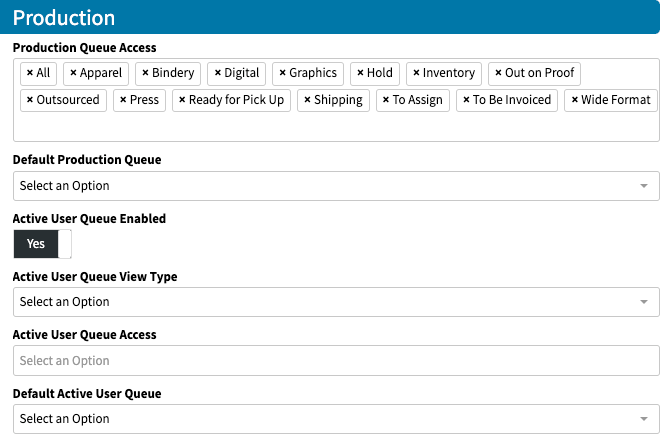
Production Queue Access
By default all production queues will be selected. You can remove access to certain production queues by clicking on the 'x' next to the queue name.
Default Production Queue
Select the default production queue to be displayed when the user accesses Production Workflow.
Active User Queue Enabled
Determines if this user can access Active User Queues.
Production > Active User - Is designed to focus on items that have been assigned to the active user, allowing them to focus on jobs assigned to them, regardless of which production queue the order items are in.
Active User Queue View Type
Select the default Active User Queue view type from the drop-down menu.
Active User Queue Access
Select whose Active User Queues this user can access.
Default Active User Queue
Select the default Active User Queue, if the user has access to multiple.
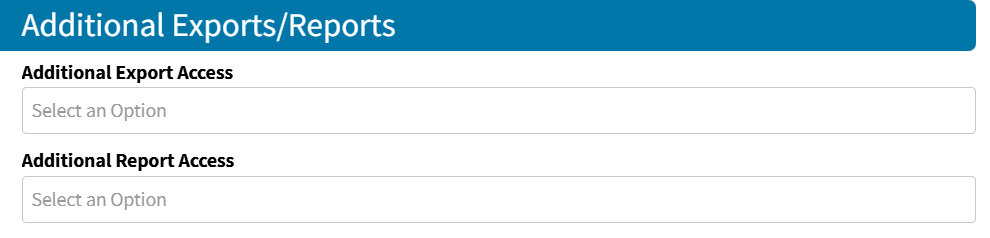
ADDITIONAL EXPORTS/REPORTS
Grant user access to utilize Custom Exports and Reports, that are built in Settings > Admin > Additional (Exports or Reports)
INTEGRATIONS
The STMP Email Integration is available at the General Level under Settings > Admin > Integrations > Outgoing Mail (SMTP Server) as well as the User Level at Settings > Admin > Users.
PREFERENCES
Select which automatic System Notification Alerts and Emails should the user receive when actions relative to each area occur in DocketManager, which can be based on the users association to the area items.
User's assigned Security Role at Settings > Admin > Security, must have Preferences > Notifications & Emails enabled.
Default to Item Edit Mode
Setting this toggle to Yes will allow you to click into an item and be in Edit Mode by default, instead of having to click Edit Mode.
Notifications & Emails
Under each section there is a set of toggles which allow you to turn on notifications for all or specific instances for this user. Enabling All will hide the other options which can be revealed by setting All to No.
The Email Toggles are utilized to automatically CC the user on specific outgoing DocketManager Emails.
The options available for Notification Alerts are listed below:
- Payments
- Quotes
- Proofs
- Inventory - Stocks
- Inventory - Supplies
- Inventory - Customer Goods
The options available for Emails are listed below:
- Proofs
- Invoices
- Quotes
- Shipping
- Receipts
- Entries
- Statements
- Transactional Statements
DELETING USERS
When deleting an active user with a username & password, a pop-up will confirm that the contact is no longer an active user. The message will also confirm how many active users are currently in the system.
Settings > Admin > Account
- Click the "Edit Profile" button of the user you would like to remove.
- Click the "Delete" button in the bottom left corner of the User Edit Modal.
- Confirm the action.
ACTIVITY TRACKING
Activity such as when users were added or deleted from the system can be tracked by clicking on Actions > Activity on the Account Page at Settings > Admin > Account