
 create new ticket
 check ticket status
Google Analytics
Google Analytics is a web analytics service offered by Google that tracks and reports website traffic.
Setup Google Analytics
- Log in to your Gmail account or create a new one
- Go to https://analytics.google.com/analytics/web/ and click Sign Up
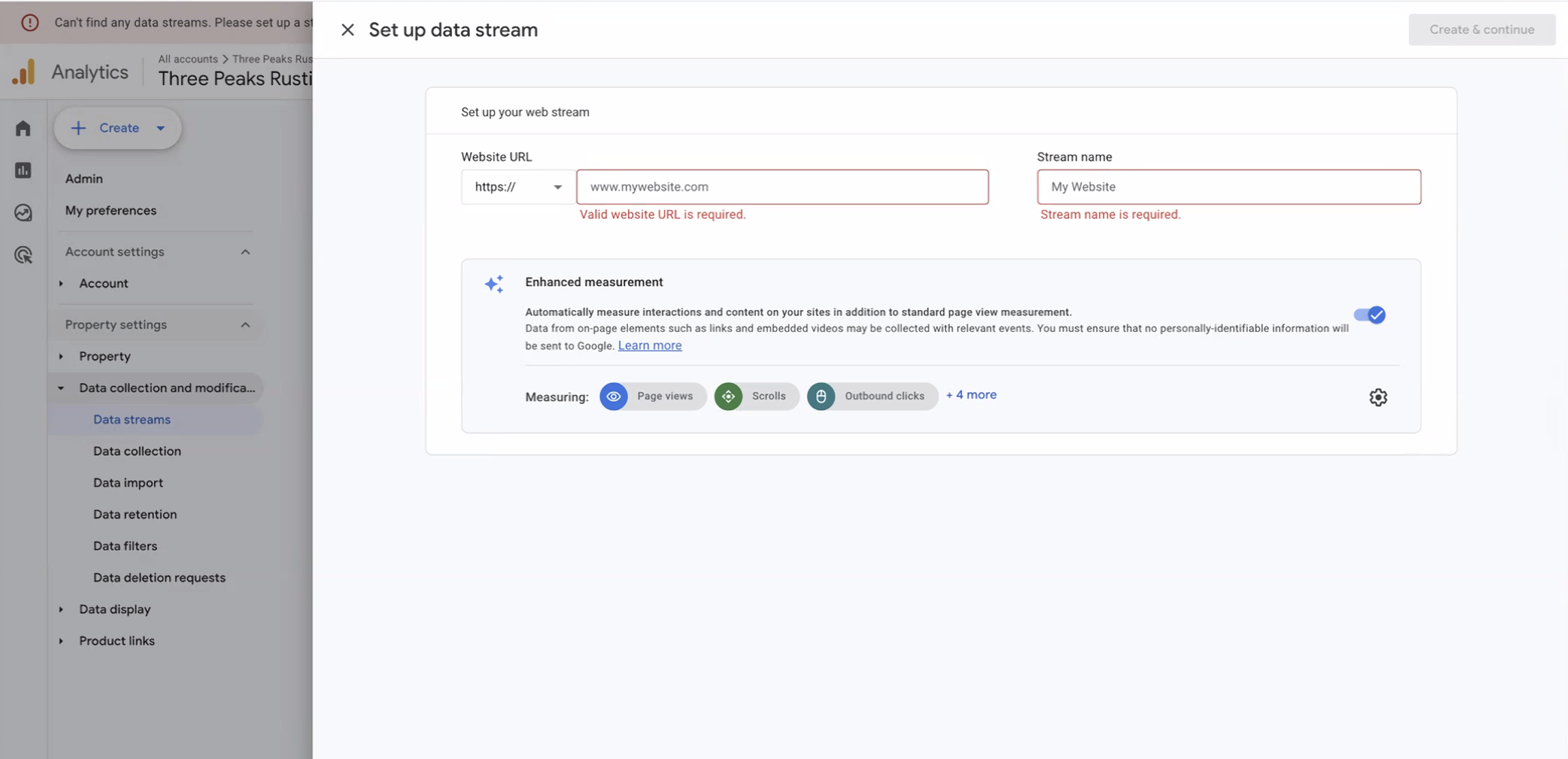
- Choose “Web” and fill out the details
- For the website URL choose https:// and enter yoursitename.orderprintnow.com for the URL
If you are using a custom domain, then enter the custom domain address. - Your Stream Name should be the name of your website or business
- Click Create & Continue
Get your ID
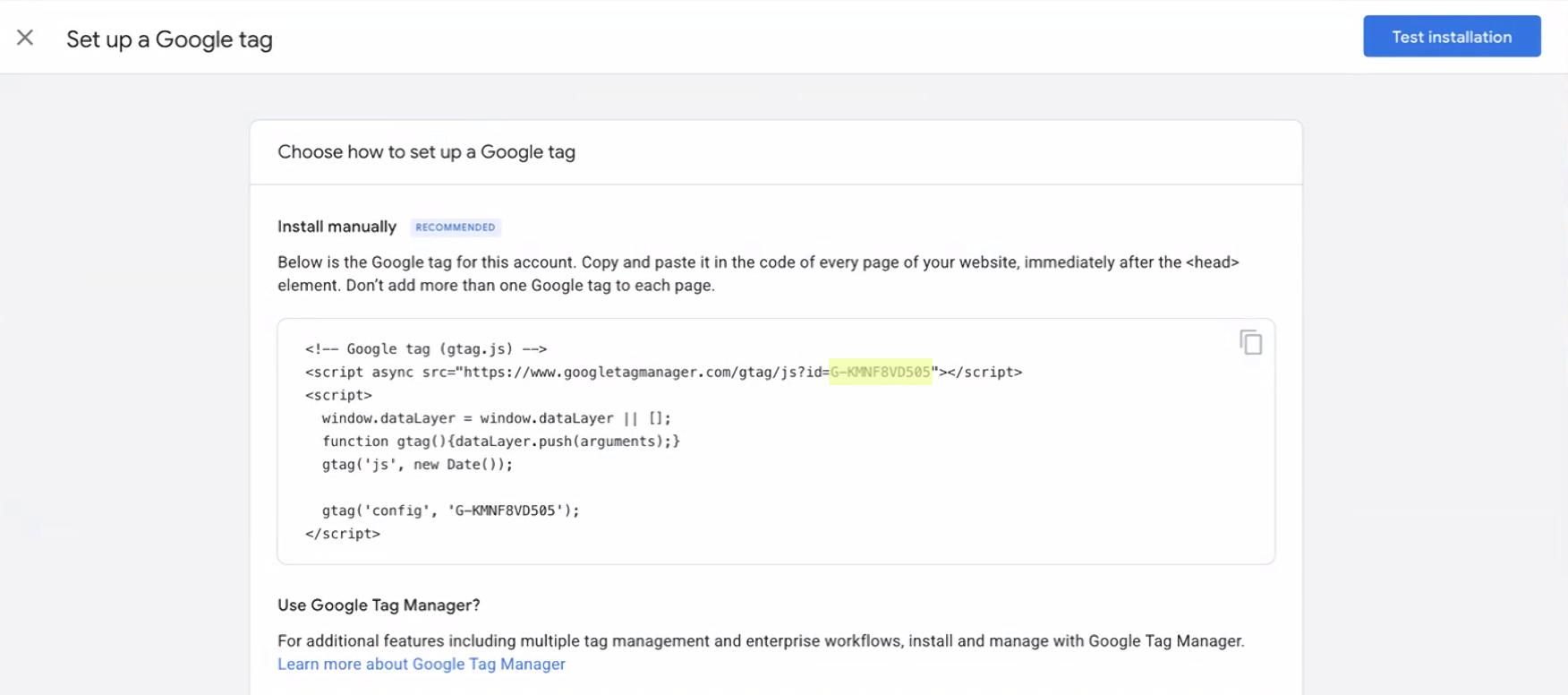
On the next page locate your Tracking ID
Your Tracking ID can be found on LINE 2 after "id=" (highlighted in the image below).
- Copy the code from this article (Below) and paste into your Portal’s Custom Javascript box.
- Replace the “ENTER-TRACKING-CODE-HERE” text with your own Tracking ID.
$('head').append("<script async src='https://www.googletagmanager.com/gtag/js?id=ENTER-TRACKING-CODE-HERE'></script><script>window.dataLayer = window.dataLayer || [];function gtag(){dataLayer.push(arguments);}gtag('js', new Date());gtag('config', 'ENTER-TRACKING-CODE-HERE');</script>");
- Save the code on the portal
- Click Test Installation on Google Analytics
- You should get a success message at the bottom of the page.
- Click Confirm in the top right corner.
Google Tag Manager
Google Tag Manager is a tag management system that allows you to create and monitor tags on a user interface.
Setup Google Tag Manager
Go to https://marketingplatform.google.com/about/tag-manager/
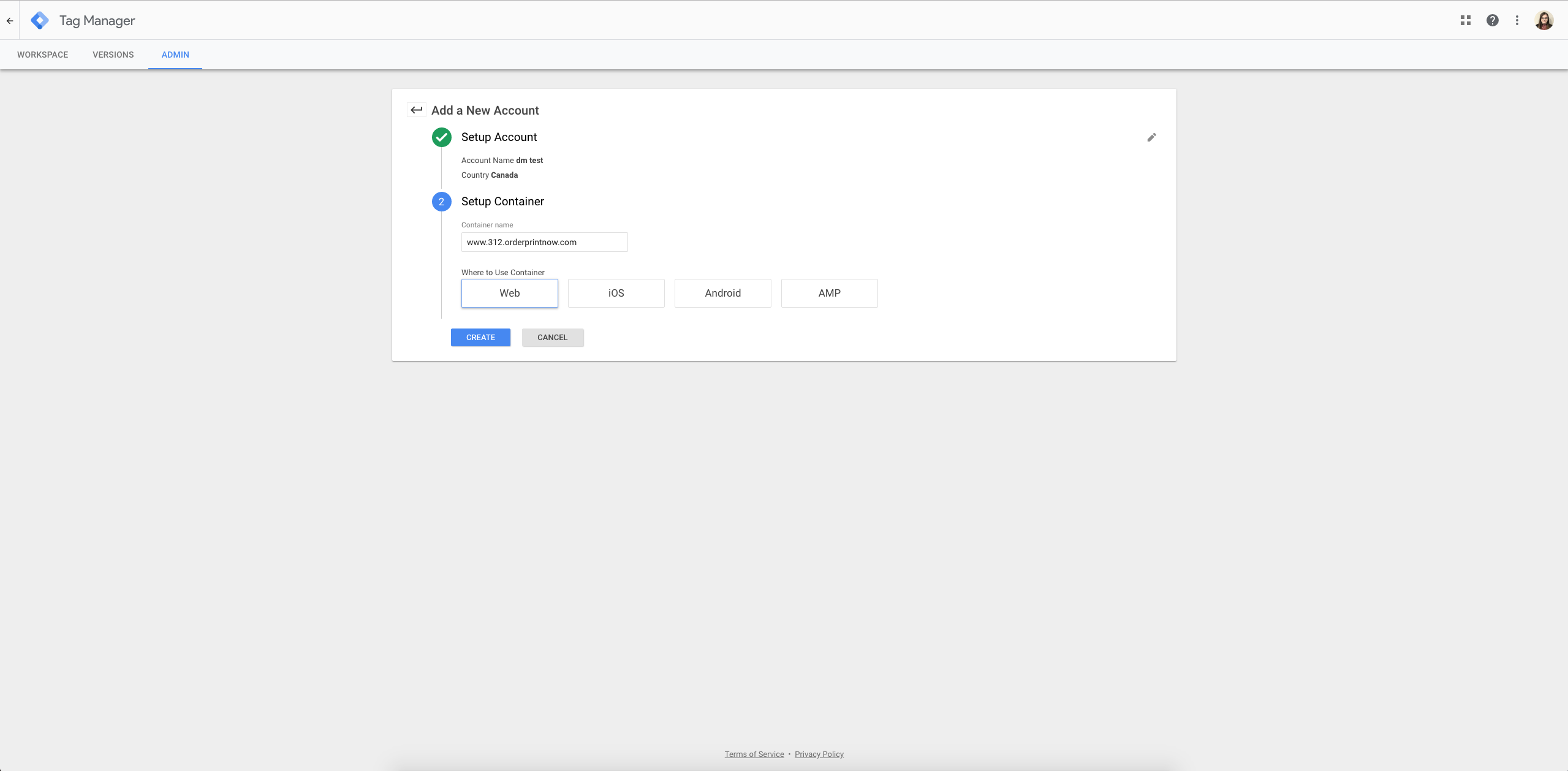
Sign up for a free account:
- Enter account name & country
- Enter yoursitename.orderprintnow.com for container name
- Choose Web
- Accept terms & conditions
Install Tag Manager
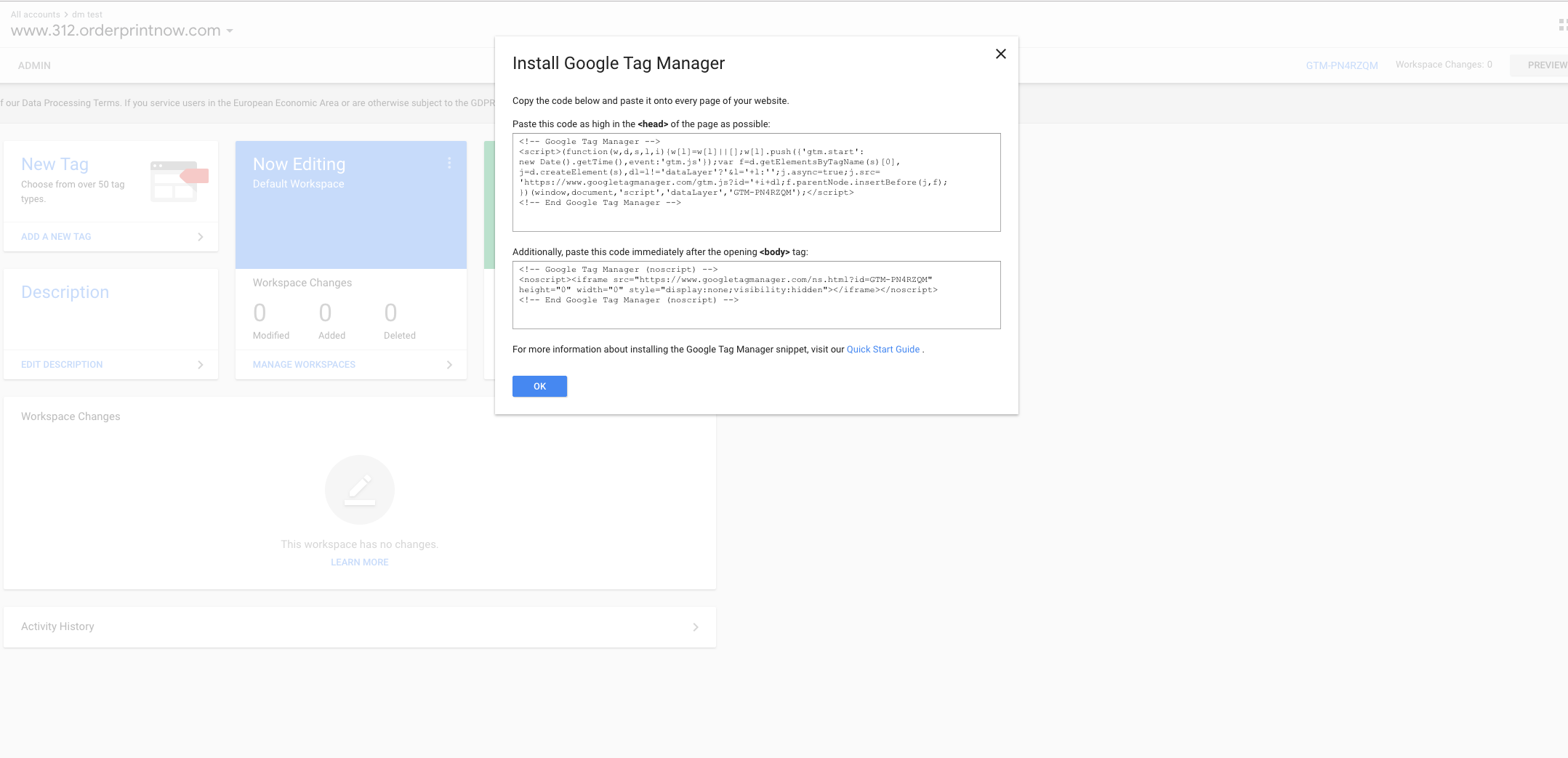
- Copy the code for the <head> of the page and paste without the <script> tags into the Portal's Custom Javascript.
(function(w,d,s,l,i){w[l]=w[l]||[];w[l].push({'gtm.start':
new Date().getTime(),event:'gtm.js'});var f=d.getElementsByTagName(s)[0],
j=d.createElement(s),dl=l!='dataLayer'?'&l='+l:'';j.async=true;j.src=
'https://www.googletagmanager.com/gtm.js?id='+i+dl;f.parentNode.insertBefore(j,f);
})(window,document,'script','dataLayer','ENTER-ACCOUNT-ID-HERE');
- We then need to add the script to the body tag.
- Add it to the bottom of the footer file (Theme > Footer HMTL) to reduce page bloat upon load.
- Under our closing footer tag, we pasted the code so it looked like this:
</footer>
<noscript><iframe src="https://www.googletagmanager.com/ns.html?id=ENTER-ACCOUNT-ID-HERE"
height="0" width="0" style="display:none;visibility:hidden"></iframe></noscript>
You should now be able to view traffic on your portal in your Google Tag Manager account.