
 create new ticket
 check ticket status
The Lock To Formula determines which field or set of fields the pricing locks to. As the Lock To Formula determines how to calculate the quantity for a Department Item.
- DocketManager is delivered with several preset Lock To Formulas - See Below for System Lock To Formula Explanations
- You can create additional Lock To Formulas or customize existing ones based on your business needs
Settings > Dockets > Department Items > Lock To Formulas
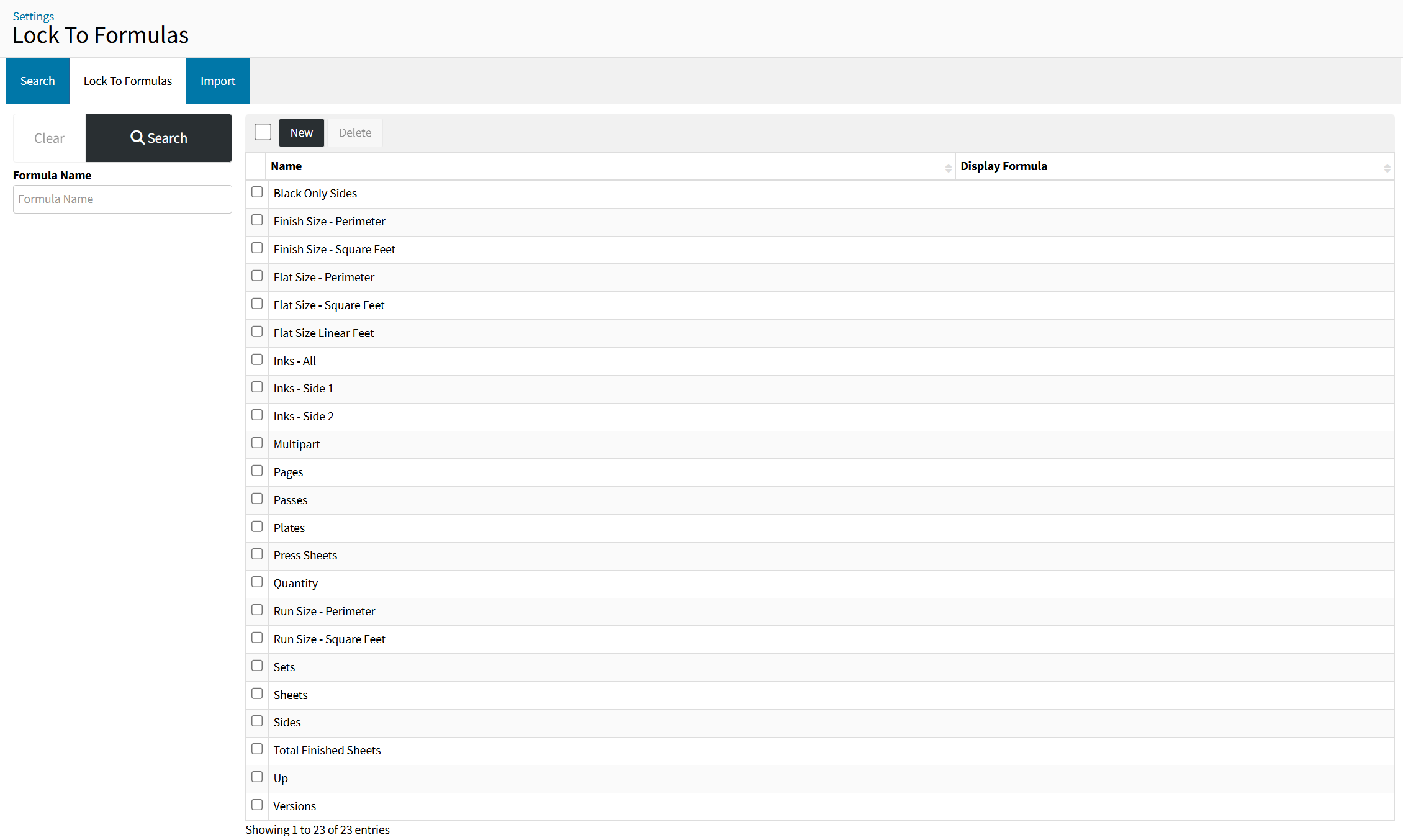
LOCK TO FORMULAS LIST OVERVIEW
Search Filter Panel
Filter your Lock To Formula List by the available fields to narrow down your Lock To Formula List to a specific criteria to quickly access the Lock To Formula you want to edit.
{New}
Begins the creation of a new Lock To Formula.
Learn more about Creating Lock To Formulas below
{Delete}
Deletes the selected Lock To Formula(s).
Lock To Formula Table
- Name - The Lock To Formula Name
- Display Formula - The Display Formula Name
CREATING LOCK TO FORMULAS
Lock To Formulas are comprised of system fields to generate a quantity defined by it's variables
Settings > Dockets > Department Items > Lock To Formulas > {New}
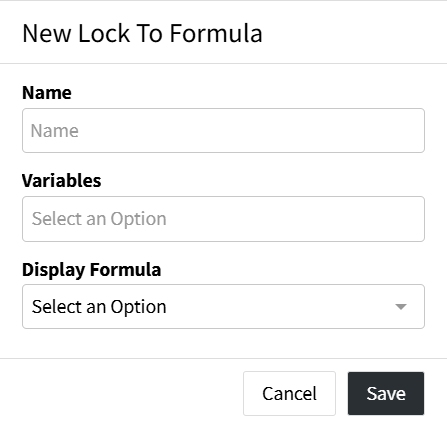
- Name - Enter a name for the Lock To Formula that represents the outcome quantity
- Variables - Select from a list of system fields, either selecting 1 for an independent lock to, or multiple to multiply several variables together
- Display Formula - Utilized when the Lock To Formula output quantity is not relevant to the customer and you want to utilize another Lock To Formula to display a relevant output quantity to the customer
The Display Formula will Display a Customer Friendly output quantity for the Department Item on the Quote/Order Item, while the Lock To Formula associated to the Department Item will be used to calculate the pricing.
You might be Pricing the activity of hemming a banner based on the Lock To Formula Flat Size - Perimeter, instead of displaying to the customer the total Flat Size - Perimeter Feet you want to display the number of banners that are being hemmed, you could add the Total Flat Sheets as a Display Formula to the Flat Size - Perimeter Lock To Formula so the information to the customer is the number of banners, while the system calculates pricing from the Flat Size - Perimeter Feet
PRESET LOCK TO FORMULA CALCULATIONS
DocketManager is delivered with several preset Lock To Formulas - See Below for System Lock To Formula Explanations
| Lock To Formula | Description |
| Black Only Sides | This calculates based on the number of single and double sided clicks that are entered on the press tab on the Order/Quote. Note: This option is for digital presses only. |
| Finish Size – Perimeter | This is a perimeter calculation based on the finish size length and width, doubled. On the Order/Quote, under the Stock tab, DocketManager will look for the finish size ((length x 2) + (width x 2)), and will convert the inches into feet. Example Use: A banner that needs to be hemmed (folded over and stitched), will be priced out by every foot the machine needs to stitch on this job. |
| Finish Size – Square Feet | This is an area calculation based on the finished size length multiplied by the width to calculate the total surface area. On the Order/Quote, under the Stock tab, DocketManager will look for the finish size ((length x 2) + (width x 2)), and will convert the inches into feet. |
| Flat Size – Perimeter | This is a perimeter calculation based on the flat size length and width, doubled. On the Order/Quote, under the Stock tab, DocketManager will look for the flat size ((length x 2) + (width x 2)), and will convert the inches into feet. |
| Flat Size – Square Feet | This is an area calculation based on the flat size length multiplied by the width to calculate the total surface area. Example Use: Laminating large format. |
| Inks – All | Note: This option is used for offset calculations. Example Use: Additional charge for wash up or for mixing the inks. |
| Inks - Side 1 | Charge for inks on side one. |
| Inks - Side 2 | Charge for inks on side two. |
| Multipart | Refers to the number of parts in the stock being used. Example Use: To calculate the total sheets for a multipart job to charge NCR gluing per finished sheet. |
| On | 1 version. Example Use: Charging a rip fee charge for every image that’s on the sheet. |
| Pages | Refers to the number of pages of the job. |
| Passes | Refers to the passes the press makes on side 1 and side 2. Example Use: An additional charge for a press with only 2 heads for a CMYK job. |
| Plates | Refers to an additional charge for the Plates, above what the offset press is already set to charge when setting up the presses. Example Use: An additional wash up charge, or a plate hang/recycling charge. |
| Press sheets | Refers to the number of total sheets going through the press, including the waste. Example Use: Folding, etc. |
| Quantity | Lock to the quantity |
| Quantity with lots/versions: | Total quantity multiplied by the total number of versions. |
| Run Size – Perimeter | This is a perimeter calculation based on the run size length and width, doubled. On the Order/Quote, under the Stock tab, DocketManager will look for the run size ((length x 2) + (width x 2)), and will convert the inches into feet. Example Use: Laminating, ink coverage modifier, etc. |
| Run Size – Square Feet | This is an area calculation based on the run size length multiplied by the width to calculate the total surface area. Example Use: Laminating. |
| Sets | This refers to the number of sets that have been entered in the “sets” field. |
| Sheets | Locks to the sheets field. |
| Sides | 1 sided vs 2 sided. |
| Total Finish Sheets | Refers to the quantity, multiplied by the versions, then multiplied by the sets. |