
 create new ticket
 check ticket status
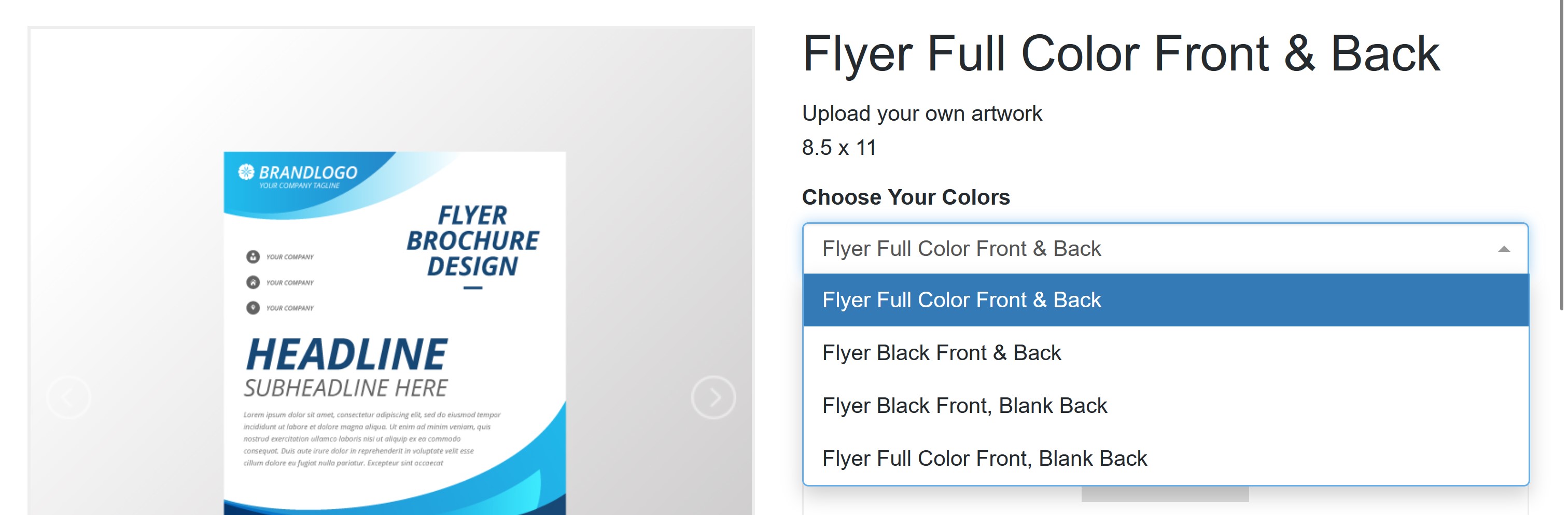
Product Options allow for a specific set of similar product items to be grouped online appearing as an individual product. The products would have the same setup with variable options, such as finish or size. This gives the appearance online of a single product with a drop-down for the individual products based on the labelled variable.
Online Ordering > Product Options
CONFIGURING PRODUCT OPTIONS
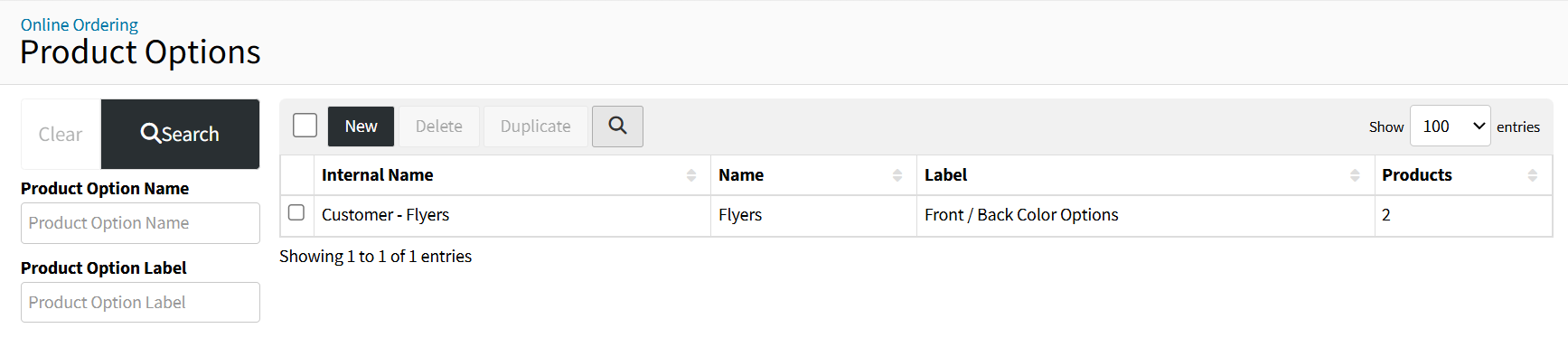
- Click the {New} button
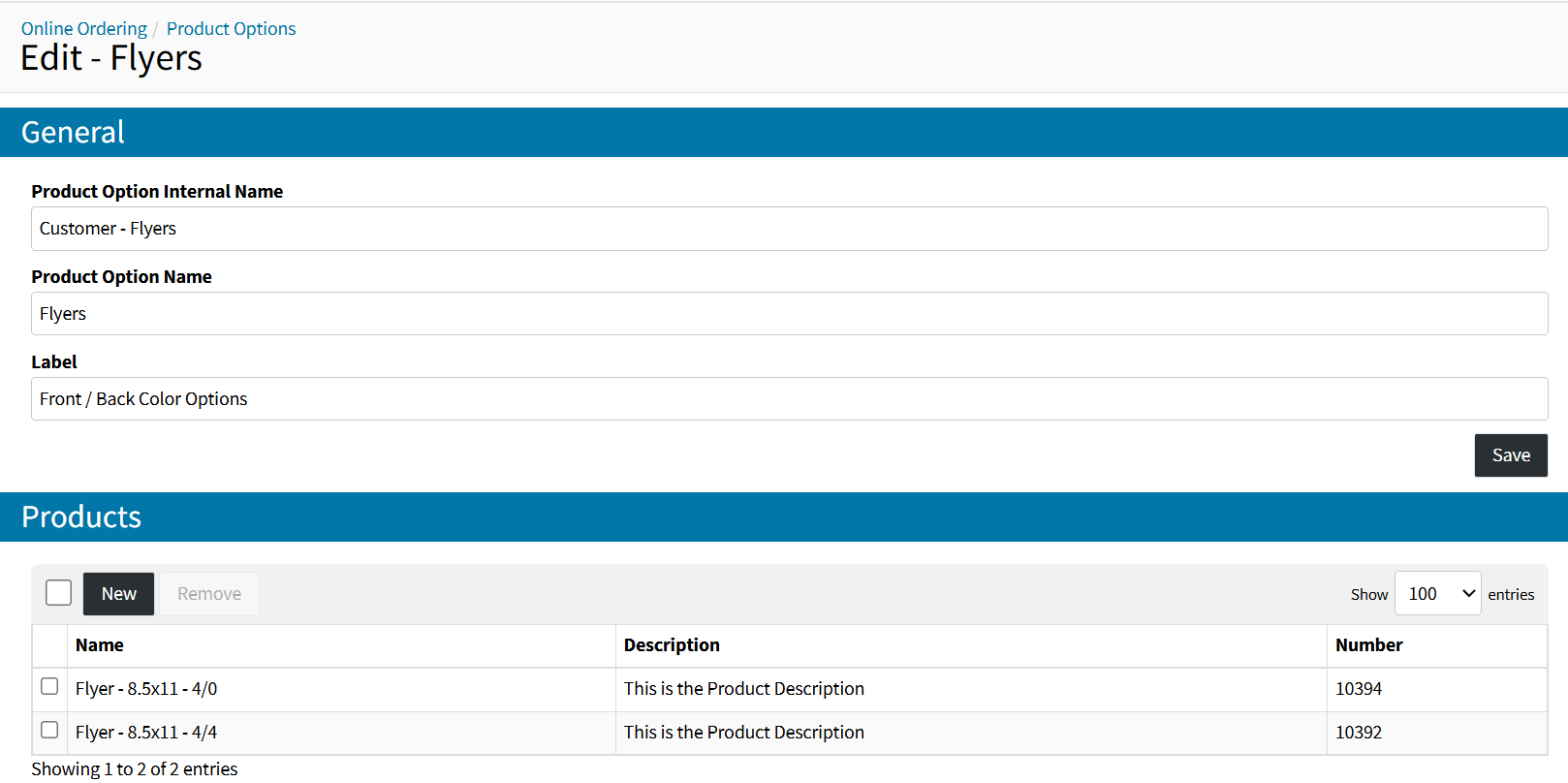
- Enter an Internal Product Option Name
- Enter a Customer Facing Product Option Name
- The Name will appear in the Product List Online
- Enter the Product Option Label
- The Dropdown Menu Label when selecting Products within a Product Option
- Click the {Save} button
- Under the Products Section click {New}
- Select the products you want to provide the user to have the option to chose from, then click {Add}
The selected products will now be grouped within the product option on the online ordering portals that the products have been provided access to. The Products will appear in the drop-down menu based on the Product List sort order within the Product Option. The sort order can be modified by dragging and dropping the Products within the Product List.
SORTING THE PRODUCT LIST
From the Product Option Edit page, hover your mouse to left-hand side of check box and then drag the product up or down to move it on the product list. A pop-up will confirm the sort order has been saved.
EDITING PRODUCT OPTIONS
Once a Product Option exists, it can be edited by clicking the Product Option Internal Name.
DUPLICATING PRODUCT OPTIONS
Once a Product Option exists, it can be duplicated by selecting the Option from the Product Options List and clicking the {Duplicate} button.
DELETING PRODUCT OPTIONS
Once a Product Option exists, it can be deleted by selecting the Option from the Product Options List and clicking the {Delete} button.