
 create new ticket
 check ticket status
The Data Driven Editor uses a Data Schema feature to apply formatting to variable fields, allowing you to maintain branding standards for your customer.
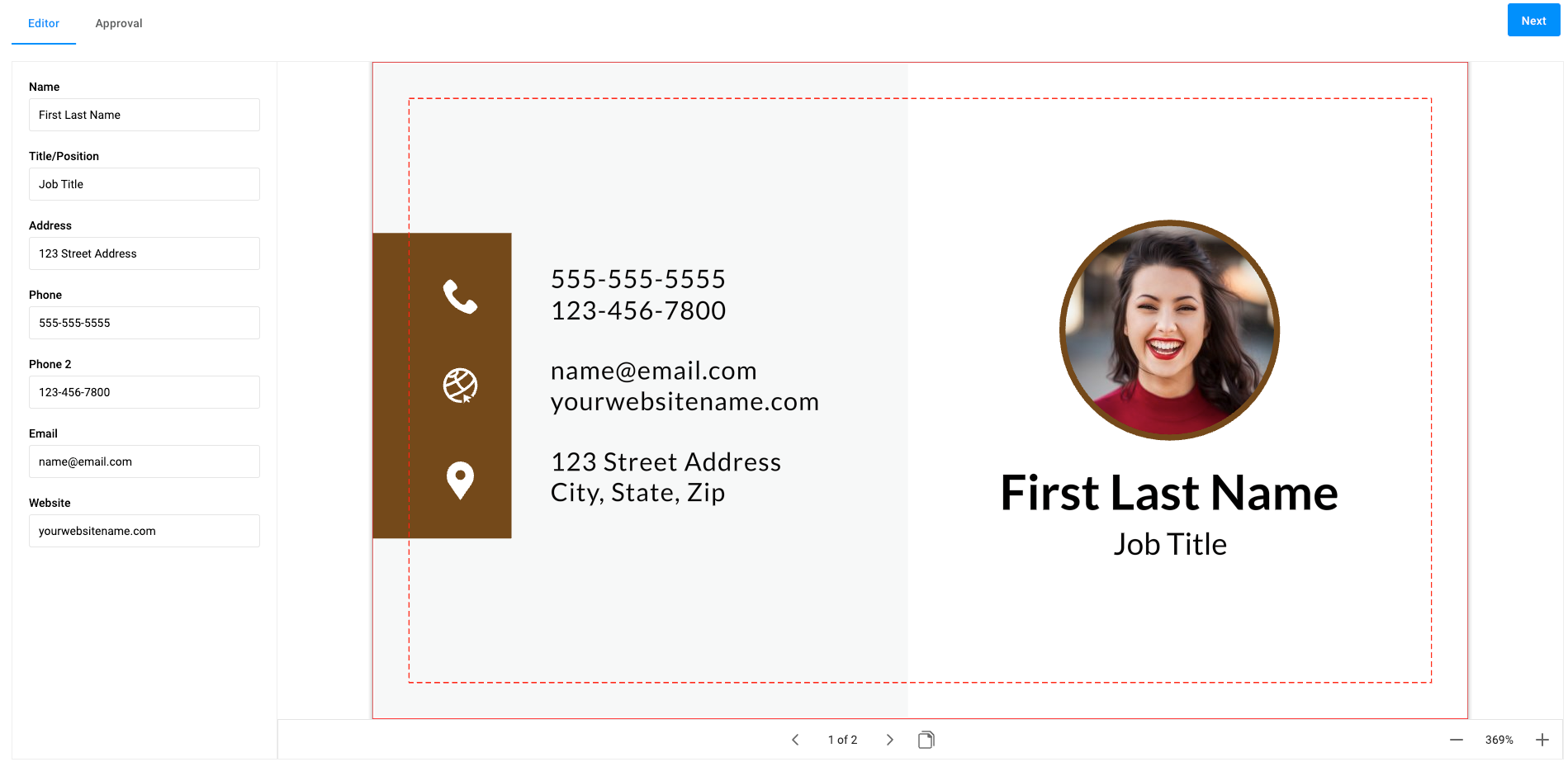
Step 1 - Data Schema
- From the Home screen click on the Data Schemas tab
- Click New > Schema
- Name > Business Card (Data Driven)
String Field Types
- Fields > Add Field
- Field Name > "Name" (Field Name must match the name of the Design Field Name)
- Field Type > String
- Scroll to the top of the page and click Apply
Repeat the process above for the following String Field Types:
- Title/Position
- Website
- Address
- Address 2
Number Field Types
- Fields > Add Field
- Field Name > "Phone"
- Field Type > Number
- Number Format > Select Format > Phone Number 2 (this will format any input numbers as ###-###-####)
- Custom formats can be specified in the format field or a preset can be chosen from the drop-down.
- Scroll to the top of the page and click Apply
Repeat the process above for the following Number Field Types:
- Phone 2
(Optional) - Variant Field Types
Preset Address Location data that will appear in a drop-down menu for the end user.
- Edit Field > Address
- Field Type > Variant
- Variants > Add Variant
- Enter a Value such as 123 Main Street <br/>London, ON N6A 5P2
The <br/> creates a line break in the data. - Enter a Display Name that will display as the choice in the drop down - London Office
- Add Variant
- Enter a Value such as 456 Center Avenue <br/>Toronto, ON M5X 1K2
- Enter a Display Name - Toronto Office
- Scroll to the top of page and click Apply
- Delete the Address 2 Field using the 3 dots to the right in the Fields menu.
Identifying String
- Under Identifying String > Add Field Name > Select Name = "{Name}"
- Scroll to the top of the page and click Save
Step 2 - Import & Edit a Design
- Click on the Assets tab into Designs
- Click on New > Import (a sample file is available at the bottom of this article)
- Right click on your Design to Rename your design to "Business Card (Data Driven)"
- Double-Click on the Design
- Select the "Main" Layer, and enable the Locked toggle in the options bar on the right side of the screen to prevent end users from making any changes to the design.
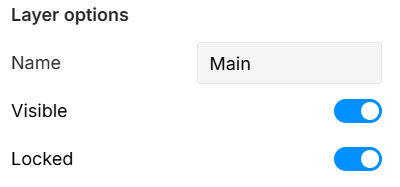
- Save and close the window
If you are using the Variant Field option for an Address Location drop-down, follow these steps, if not move to Step 3.
- Select the Address 2 text box
- Click Delete on your keyboard
- Select the Address text box and expand it so the second line of the Address details will have room to fit.
- Save
Step 3 - Link Data Schema
- From Assets > Designs
- Right-Click on the Business Card (Data Driven)
- Select Schema > Link With
- Select > Business Card (Data Driven)
Step 4 - Product Specifications
- Go to the Prod. Specifications Tab, and click the Create New button in the top right corner.
- Name > "Business Card (Date Driven)"
- Personalization Workflow > Data Driven Editor
- In the Attributes section select the design Business Card (Data Driven)
- Save
Step 5 - Test
- Click the Preview button to preview what your customers will see online.
Step 6 - Link to Product
- In the DM Navigation Menu go to Settings > Online Ordering > Products
- Locate or Create a Product
- Edit the Product
- Enable Edit Mode
- Online > Variable Template > Select the Product Specification from the dropdown list.
See these steps in action - B2B Variable Template Video