
 create new ticket
 check ticket status
BEST PRACTICES
The following includes some tips to provide the best user experience when navigating through DocketManager.
Google Chrome Browser
DocketManager is written to Google Chrome standards and offers the best user experience.
Hard Refresh
Some page functionality issues can be resolved by performing a hard refresh. This is especially true after a software update.
- Mac Users - Hold down CMD + SHIFT, then press R
- Windows Users - Hold Down CTRL, then press F5
- For Windows Users with Locked Function Keys - Hold Down CTRL + FN, then Press F5
Popup Blocker
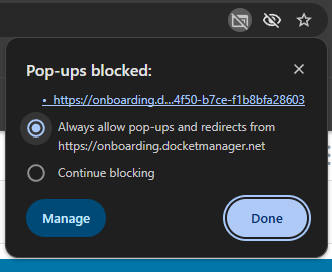
When you print your first document (quote, workorder, invoice) you may have to disable your browser popup blocker. An alert will display in the right hand side of the address bar of your browser where you can allow popups from DocketManager.
TOP NAVIGATION BAR
The Top Navigation Bar allows for quick access to several key functions in DocketManager.

New
The New button is a shortcut to create new items with a single click. The following options are available in the New dropdown based on a user's security settings:
- Customer
- Contact
- Order
- Quote
- Stock
- Task
- Vendor
- Supplier
| Barcode |  |
This allows users to scan a barcode that had been printed on a document. Opening the associated item on screen.
| Email Communications |  |
Side panel access to Email Communications that have been sent from your DocketManager system.
| Timers |  |
Side panel access to Timers that are present in your system.
For more information on timers, see General - Timers.
| Tasks |  |
Side panel access to Tasks that are Active, Completed, and Assigned to Others.
For more information on tasks, see Tasks - Overview.
| Alerts |  |
Side panel access to Alerts in your system. These alerts include New and Completed Tasks, Failed Emails, Online Payments, Quote Approvals, Proof Updates, and Payments.
For more information on alerts, see General - Alerts.
| Toggle Help |  |
Page sensitive help that presents Help Articles, FAQ, and Videos specific to the page that you are on in DocketManager.
| User Guides |  |
User Guides provide step by step on screen instructions for many different operations within DocketManager.
| Announcements |  |
Stay up to date with news and updates from DocketManager.
| User Menu |  |
This shows the identity of the current user. Hovering the mouse over the user name opens a drop-down that includes links for the following:
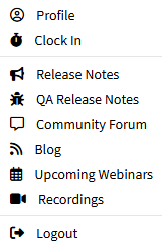 | Profile - General user settings, email integration, & preferences. |
| Clock In / Clock Out - For logging work attendance through the system time clock. | |
| Release Notes - Note worthy function and feature updates. | |
| QA Release Notes - List of resolved system issues. | |
| Community Forum - Open discussion topics and feature requests. | |
| Blog - Tips & Tricks, FAQ, Showcased Features, Unique use cases for CSS & Javascript. | |
| Upcoming Webinars - Registration for group webinar training. | |
| Recordings - Pre-Recorded webinars and training. | |
| Logout - Securely terminate your authenticated session. |
NAVIGATION MENU
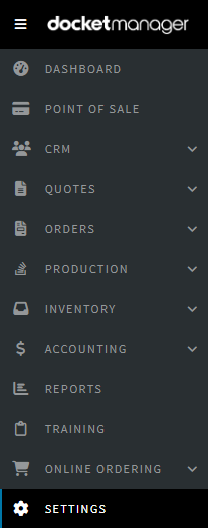 | Hamburger Button - Used to minimize and expand the navigation menu. |
| Dashboard - A live snapshot of your business. | |
| Point of Sale - Easily enter orders with minimal clicks. | |
| CRM - Customers, Contacts, Suppliers, Vendors, Marketing Campaigns, Marketing Lists, and Sales | |
| Quotes - List of all Quotes and Quote Items. | |
| Orders - List of all Orders and Order Items. | |
| Production - Track order items throughout your facility. | |
| Inventory - Stocks, Customer Goods, Supplies, and POs. | |
| Accounting - AR, Deposits, Payments, Entries, Revenue & GL Account Breakdowns, Closeouts & Commissions | |
| Reports - Accounting, Analysis, Efficiency, Inventory, Marketing, and Sales. | |
| Training - System setup resources and training materials. | |
| Online Ordering - Web2Print Configurations, Assets, and Products. | |
| Settings - Accounting, Admin, Communications, Customers, and Dockets. |
HELP & SUPPORT OPTIONS
Help is only a click away:
Contact
Redirects to DocketManager's contact page.
Providing information regarding the best way to reach the team for any type of issue.
Articles
Access DocketManager's Knowledge Base of articles, Community Discussions, and Feature Requests.
Issue
Search for solutions, or directly submit a support ticket from DocketManager.