
 create new ticket
 check ticket status
This is a system setup article to get the initial necessary customer details into the system to begin using DocketManager.
For a more in-depth Customer creation article click here.
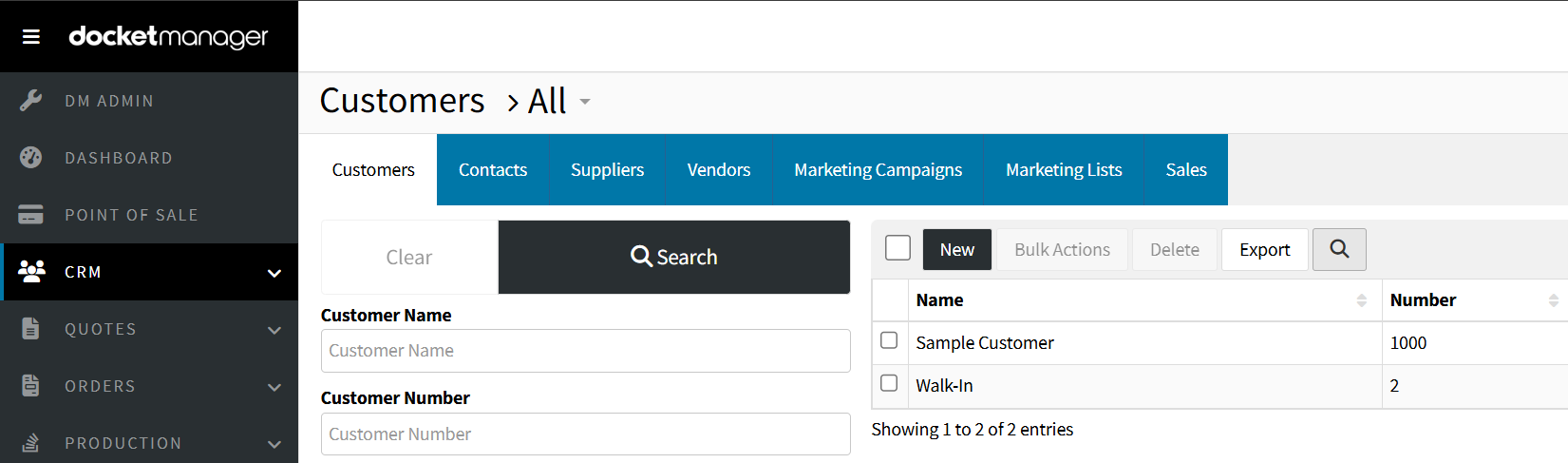
Companies or Individuals who are existing Customers or current prospects can be set up in the Customer Tab of the CRM.
- Defaults configured within each Customer, transfer over to all their new Quotes and Orders.
- See the Customer Import Article for more information regarding Importing Customers.
Navigate to:
CRM > Customers > {New}
GENERAL
- Customer Name - Enter the name of the Customer's Business
Only enter the name of an Individual if the person's name is the business name. Individuals of a Customer's Business are going to be created as Contacts after the Customer exists.
- External Identifier - This field can be utilized as a reference to your prior system, accounting software, or a unique customer identifier of your choosing
The Phone, Fax, Email, Website and Social Media details of a Customer should be the generic business contact details. Extensions or Direct Phone Numbers of individuals are added when creating Contacts.
- Phone - The Customer's Primary Company Phone Number
- Fax - The Customer's Company Fax Number
- Email - The Customer's Company Email Address
- Website - The Customer's Company Website URL
- Add New - Allows you to Add Additional Customer Company Contact Information
- Dropdown Menu - Select an additional contact detail option
- Contact Information - Define the additional contact detail, then Click {Add}
When adding Facebook, Twitter, or Instagram accounts, only he username is required. No need for a web URL or an @ symbol.
Tags are a great optional way to group or organize your Customers for searching purposes. You can create as many tags as you need and you can add them to any Customer you want to locate faster.
- Tags - Optionally select a tag from the dropdown menu, or type out a new one then click it in the dropdown to create a new Customer Tag.
The selected Shipment Type will be selected by default for the Customer on New Quotes and Orders.
- Shipping Type - Informationally Select a Shipment Type from the from the drop-down or click on the {+} icon to add a new Shipment Type
The selected Invoice Delivery will be selected by default for the Customer on New Quotes and Orders.
- Invoice Delivery - Informationally Select the method with which the customer prefers their Invoice delivered from the drop-down or click on the {+} icon to add a New Invoice Delivery Method
LOCATIONS
When adding locations in DocketManager, all Location Fields must have content entered for the system to accept the location, or all Location Fields must be left blank for no location to be utilized.
- Default Billing - This is the default Billing Address for the Customer, and will pre-populate onto a Quote or Order when this Customer is associated with a New Quote or Order, when an associated Contact doesn't have their own specific Billing Address
- Default Shipping - This is the default Shipping Address for the Customer, and will pre-populate onto a Quote or Order when this Customer is associated with a New Quote or Order, when an associated Contact doesn't have their own specific Shipping Address
- Additional Locations - Allows you to add additional Billing and/or Shipping locations that the Customer may want to utilize on some of their Quotes, Orders, and Shipments
- Location Tax Types - Additional Locations can have different Tax Rates from the Customers Default Tax Rate
When the Additional Location is selected on a Quote, Order or a Shipment, it replaces the Customers Default Tax Rate with the one defined by the Additional Location.
FINANCIAL
- Tax Type - Select the Customer's Default Tax Rate that should pre-populate on to a Quote or Order when this Customer is associated with a New Quote or Order, or click on the {+} icon to add a new Tax Rate
The Customer Tax Type can be 1 or more Tax Rates, for reporting different government level tax rates separately.
- Tax Exempt Number - If you have selected the "Tax Exempt" Tax Rate, this field can be utilized to keep a record of the Customer's Tax Exempt Number
- Requires PO - If toggled to "Yes", an Order may not be Posted until a value is entered into the Purchase Order field
- PO Character Count - Optionally allows you to set a strict character count requirement
- PO Character Count - Optionally allows you to set a strict character count requirement
- Payment Terms - Select the Default Payment Term that should pre-populate onto a Quote or Order when this Customer is associated with a New Quote or Order, or click on the {+} icon to add a new Payment Term
The Invoice Due Date will automatically populate on the Order when Posted, based on the Payment Term's specified days from the Invoice Date