
 create new ticket
 check ticket status
BASIC PRODUCT SETUP
Online Ordering > Products
- Click the {New} button
- Select the Customer "Sample Customer - 1000"
- Give your Parent Product a Container Name "Flyers"
Parent Products are containers that hold multiple product items or product groups.
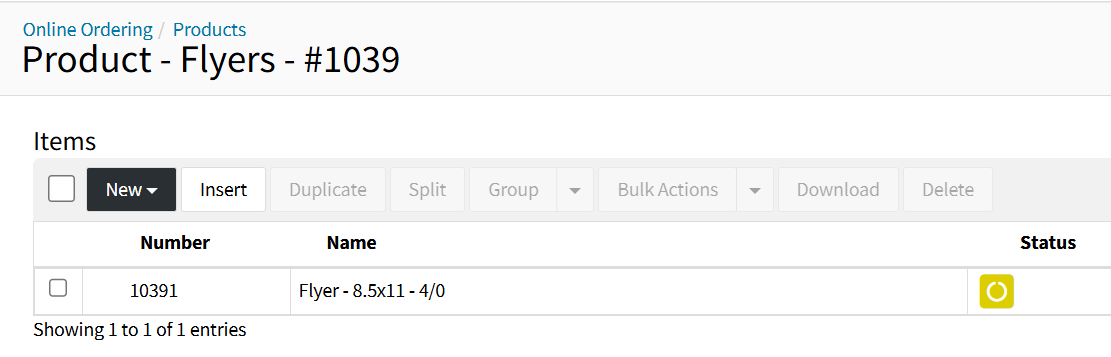
- Hover over the {New} button, and select Quick Add
- Name your Product "Flyer - 8.5x11 - 4/0"
- In the Description write "This is the Product Description"
- Select a Digital Color Press of your choosing and put in 1 Color Sheets
- Add a stock of your choice that can imposition an 8.5x11 Flyer
- Add the Flat Size of 8.5" x 11" & enable the With Bleed toggle
- Add a qty of 100, then click the {Save} button
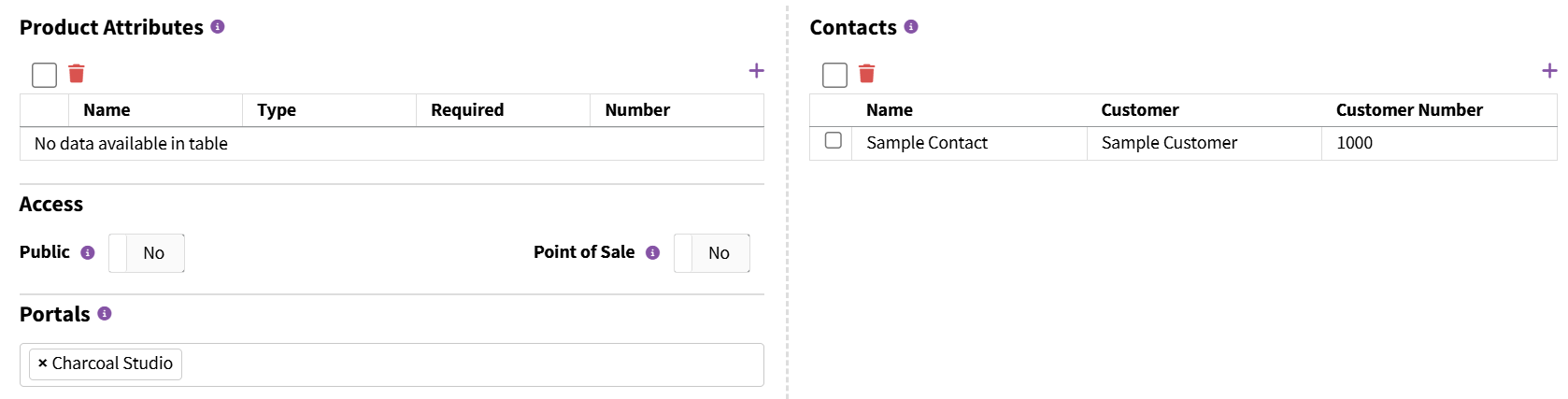
*Because the Sample Customer has the Online Ordering Setting [Automatically Grant Contacts Product Access] Enabled, the Sample Contact has been automatically assigned Access to this Product.
Product Portal Access
- Click on the Item Number of the Flyer - 8.5x11 - 4/0 Product
- Enable {Edit Mode} in the top right corner
- Within the Online panel under Portals, select Charcoal Studio, then click the {Save} button
This is a Private Product, making the product available on the Charcoal Studio Portal, for any contacts that are associated.
Preview the Private Product
- Hover over Online Ordering > then Right-Click Portals/Themes > and {Open link in new tab}
- In the new tab, click the Portal URL icon for Charcoal Studio
The {Products} page will be empty as the product is still private
- Click the {Login} button in the top right corner
- Enter your DocketManager Account credentials, then click {Login}
We have assumed the identity of a user that has access to the Charcoal Studio Portal, and see what Products they have access to.
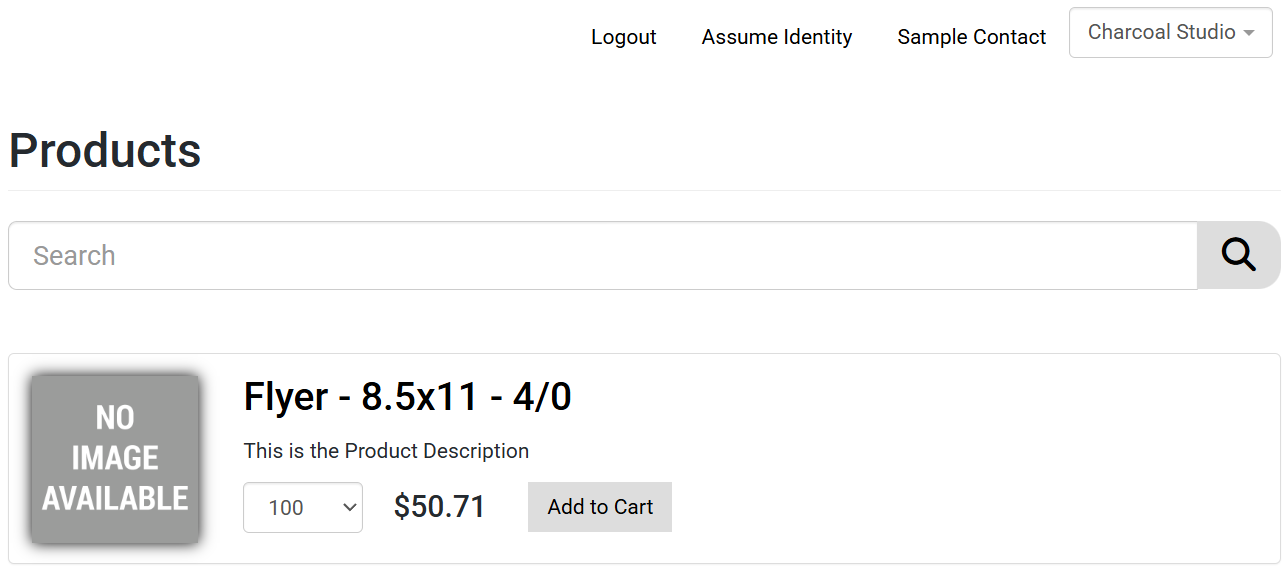
Update to a Public Product
- Go back to the Product Setup Tab of your browser
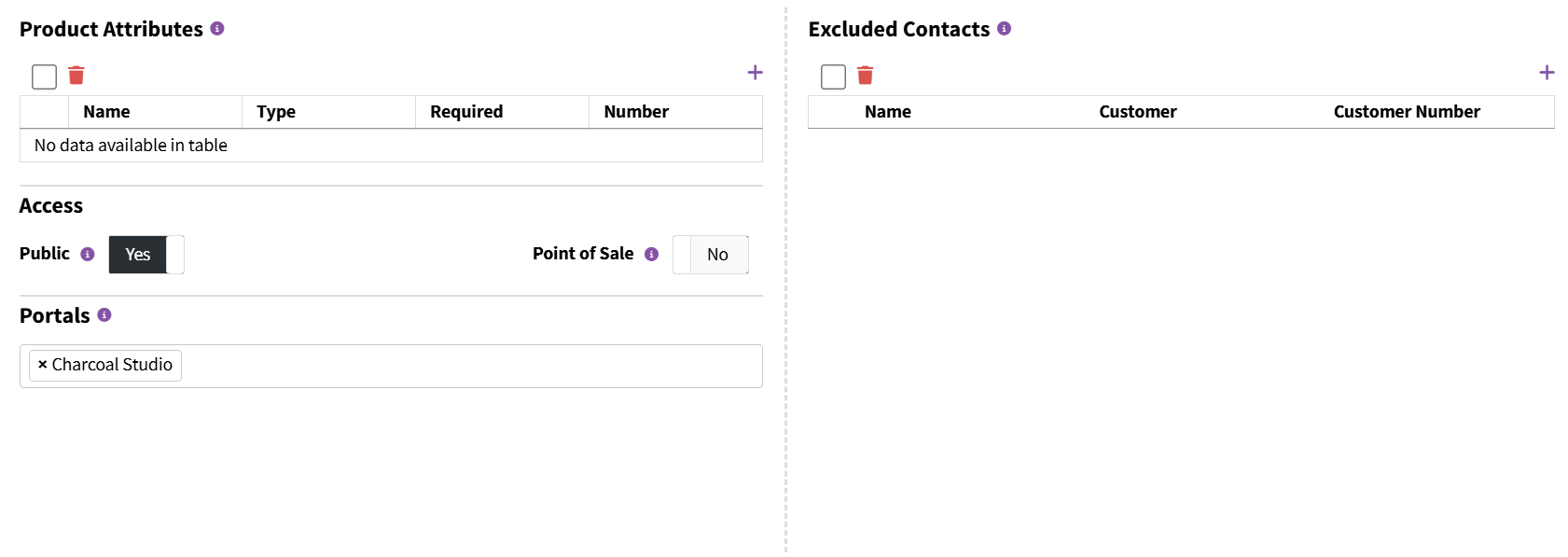
- Within the Online panel under Access, switch the Public toggle to "Yes"
- Within the Online panel under Excluded Contacts, delete Sample Contact from the list
- Click the {Save} button
This is a Public Product, making the product available to anyone with access to the online ordering portal.
Preview the Public Product
- Go back to the Online Ordering Portal Products Page Tab of your browser
- When you refresh the page, the product will still be available for the logged in user
- Click the {Logout} button in the top right corner of the page, then click the back button
- You are now browsing the portal as a guest, and can view public products
PRODUCT CUSTOMIZATIONS
Online Ordering > Products > Product Item > Enable Edit Mode > Online Panel
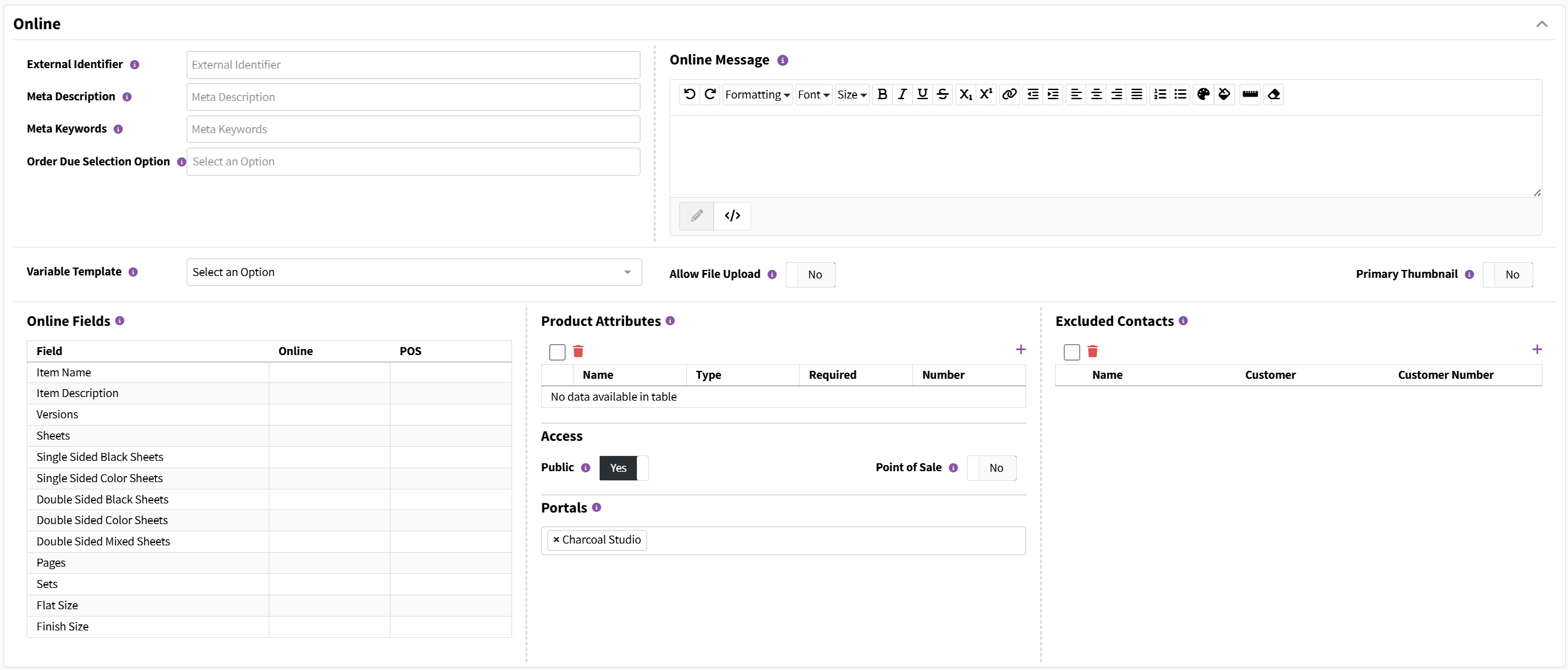
External Identifier
Utilized when pushing orders from an external W2P system into DocketManager via XML Import.
Meta Description & Keywords
Utilized for Search Engine Optimization to rank your site in search results.
Order Due Options
Allow the end user to choose from one or more Order Due Options when ordering this Product. If there are no Order Due Options selected then all of the visible online options are available to the end user.
Order Due Options can be managed in Settings > Dockets > Order Options > Order Due Options.
Online Message
Allows you to present additional information or selling points specific to a product, appearing below the item thumbnail on most portal designs.
Variable Template
A Variable Template can be assigned to a Product once they are created in later setup articles.
Allow File Upload
Allows the end user to upload their own art file, mailing list, dieline, etc that is specific to this Product. Uploaded customer files will be attached to the Order Item in DocketManager when the order submitted.
- Required - A toggle that makes a customer file upload mandatory for the product to be added to the cart.
Primary Thumbnail
Customer File Uploads will generate a thumbnail to replace the product thumbnail if the toggle is set to "Yes".
Online Fields
Offer additional customization control of the product to the end user, online or on the POS.
- Click the Edit Pencil of the Item Name field
- Toggle Online to "Yes"
- Switch the Behavior to "Amends to End"
- Label the field "Flyer Name"
- Add a Message to the end user "Name Your Flyer"
- Click {Save}
- Save the Product
- Go to the Products Page of the Online Ordering Portal, and click the Product Name or {Customize}
After the user names their flyer and adds it to the shopping cart, the Product Name will amend with their Flyer Name.

Product Attributes
Allows you to offer preset multiple Stock choices or Department Item finishing options.
- Click the {+} icon at the top-right of the Product Attributes table
- Name your Attribute "Folding Options"
- Select the Type "Department Item"
- Click the {New} button
- Select "Fold in Half" and "Trifold", then click {Add}
- Toggle both options to Add To Price, "Yes"
- Click {Save}
- Save the Product
- Go to the Products Page of the Online Ordering Portal, and click the Product Name or {Customize}
When the user selects a Folding Option, the Price of the Product will increase based on the Department Item Pricing.
Note: When using group products online, ONLY the primary item's product attributes will display.
PRICING CUSTOMIZATIONS
Online Ordering > Products > Product Item > Enable Edit Mode > Pricing Panel
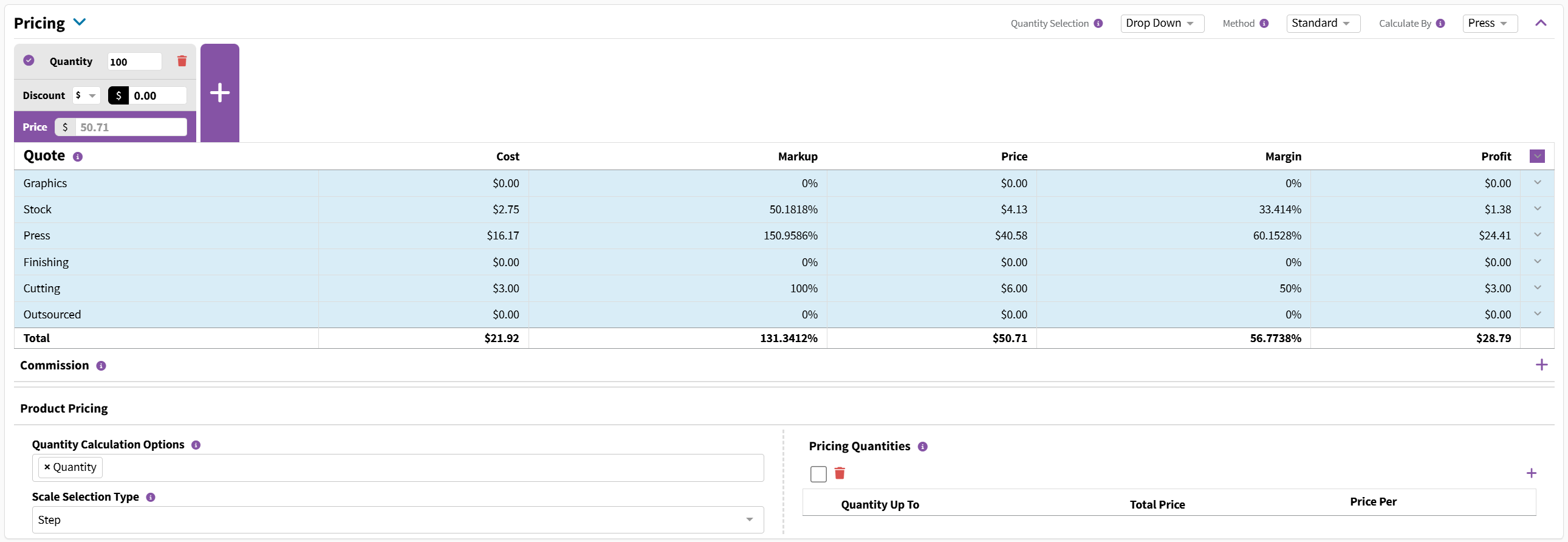
Quantity Selection
- Drop Down - Displays only the predefined quantities available below.
- Text Box - Allows the end user to input any desired qty that can be restricted between a minimum and a maximum.
Method
- Standard - Freeform system calculated pricing - Quantity x Sets x Version x Sheets.
- Price Per Version - Pricing is calculated for one finished piece (Quantity x Sheets x Sets) and is then multiplied by the number of versions.
- Multi Version Discount - Standard Pricing with a markup on top based on the number of versions.
Calculate By
- Template Option - Pricing is set at the Template level.
- Press - Freeform system calculated pricing based on Stocks, Department Items, Presses, and Outsourcing.
- Product - Product Pricing is an override on Press Pricing that allows you to set custom prices for specific products at certain quantities. Stock can be toggled to add onto the price of Product Pricing.
Product Pricing
Create a custom Price Per Piece for your product
- Switch the Calculate By dropdown menu to "Product"
- Within the Product Pricing section of the Pricing Panel, select "Quantity" for the Quantity Calculation Options
- Scale Selection Type allows for an Averaged curve between pricing levels or a hard Step with no incremental change
- Within the Pricing Quantities section of the Pricing Panel, click the {+} icon
- Add a Quantity Up To 100, Total Price $50.00, then click {Save and Add New} from the dropdown arrow
- Add a Quantity Up To 200, Price Per Piece $0.375, then click {Save}
- Check the Stock Panel, make sure that the Stock is set as Add to Price "No"
- Save the Product
- Go to the Products Page of the Online Ordering Portal, and click the Product Name or {Customize}
The Product can now be purchased at $0.50ea up to the qty of 100, then at $0.375ea up to a qty of 200. There is a sudden change at a qty of 101, this can be prevented by using an Averaged Sale Selection Type.
For more details about Product Items learn more about the Product Item Page Breakdown.