
 create new ticket
 check ticket status
Assets Overview
Online Ordering > Variable Templates New > Assets
Folder level storage file manager for your assets. Weather you are working with designs, images, fonts, or color profiles, the interface looks like this:
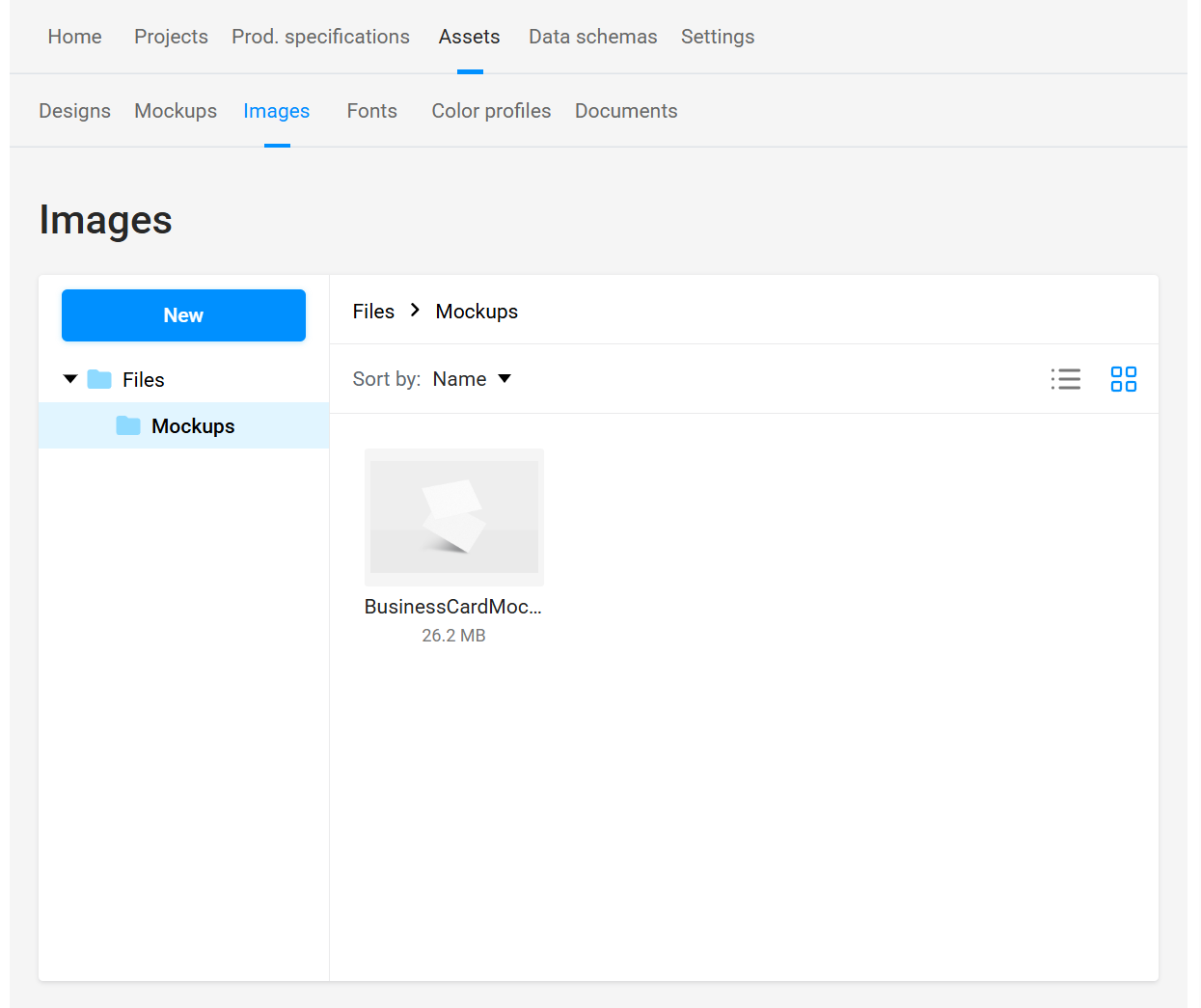
Asset Tabs
Switch between managing various assets from Designs, Images, Fonts, and Color Profiles.
"New" Button
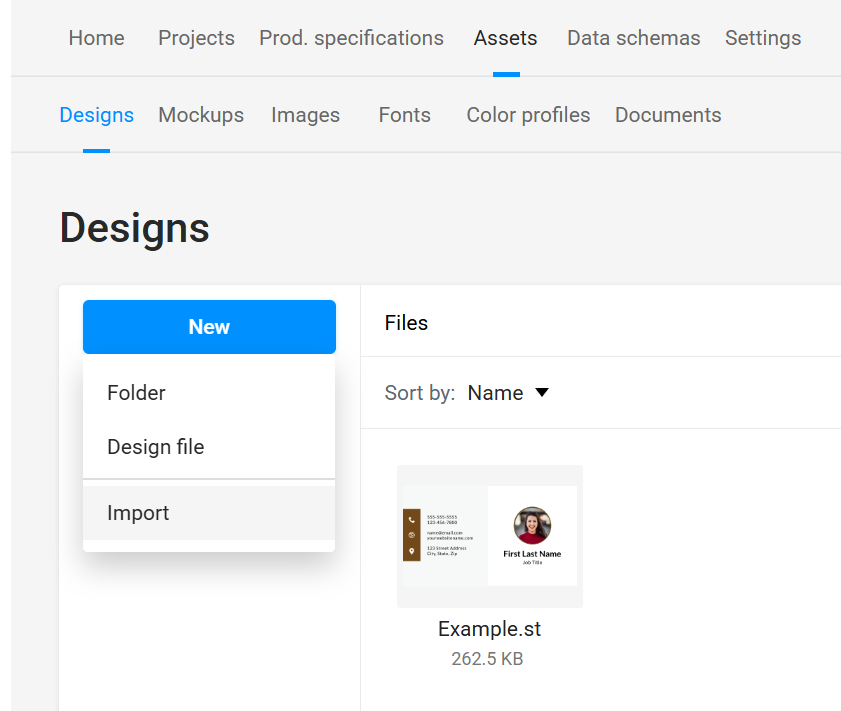
Allows you to create a new folder for organization of your assets, or to start/upload a new asset. This can also be accessed by right-clicking the empty space next to an existing asset. Or you can drag and drop new assets into the window, as long as the file type is supported by the asset type.
Left Hand Folder Tree Panel
Displays the organizational folder structure of the selected asset tab.
Navigation Bar Breadcrumbs
Displays breadcrumbs of the current folder path. In the example above it is "Files > Mockups".
Sort, Action & View Toolbar
Allows you to sort your assets by Name, Date Modified or Size, and switch between table or grid view. When an asset is selected, action buttons are available to download or delete an asset.
Errors
When the system detects any issues with a specific asset, you will see a warning icon on it. Right-Click the asset and select "Properties", you can review details about the problem in the Errors tab of the asset properties window.
DESIGNS
Import InDesign (.idml) or Photoshop (.psd) designs, or start from scratch in Customer's Canvas with a New Design File.
InDesign File Best Practices
Prior to Importing your InDesign file check the following for a seamless process:
- Separation and naming of text fields - Any text used in the design that will be a variable field (customizable by your users) should be separated into its own text field. Ensuring you won't need to remake the text fields after importing.
- While not required, it is recommended to name each layer something simple, for easy identification.
- Embed Images - Embed all images used, otherwise you will receive an error when importing. In InDesign, open the Links panel, select all the images to embed, click the menu icon in the top right, then select the Embed Link option.
- .AI and .EPS image links are not supported and will be rasterized by the application when the design uploads. Any vector art should be .SVG or you can rasterize the image yourself before uploading for better image quality.
- Save as IDML - Only .idml InDesign file extensions can be uploaded, as the extension supports multi-media content creation and editing applications. Allowing third-party software such as Customer's Canvas to open and edit the file through an XML representation.
- Upload Fonts First - All fonts used in the design part of variable fields must be uploaded to Assets > Fonts prior to importing. Any static (non-variable) text that you can't source fonts for, can be converted to text outlines to prevent errors during import.
MOCKUPS
Currently being stored under Assets > Images > Mockups Folder. Providing customers with a realistic mockup preview for the product they are customizing.
Learn more about - Mockups
IMAGES
Store and organize mockups, images, photos, logos, and backgrounds that can be utilized by customers when personalizing templates. Supporting AI, BMP, GIF, JPEG, JPG, PDF, PNG, PSD, SVG, and TIFF file types.
FONTS
Import TrueType or OpenType fonts for use in customizing templates.
COLOR PROFILES
Import Source and Destination ICC Color Profiles, to make sure that colors are correctly converted between RGB & CMYK. Source and Destination color profiles are used to define color characteristics in Customer’s Canvas. The source color profile is for any graphics loaded into the editor. The destination color profile is for your hi-res output.
Designs used by the Data-Driven Editor in a B2B Product Template should make use of Data Schemas to set formatting rules and validations of user input that maintain branding and overall consistency across orders.
Learn more about - Data Schemas