
 create new ticket
 check ticket status
A Portal is a specially designed website that serves as the point of access for online retail sales. Multiple portals can be created, depending on your company and customer needs.
- Any of the CSS/JS customized on the portal level will be added last. If the same class is styled differently on both the theme and portal level, the portal level styling is what will be applied.
- If this is your first time configuring Portals, try out the guided W2P - Portal Setup Article before customizing your own Portal from scratch.
- Browse the list of Home and Custom Portal Page Tags that can be utilized when customizing your Portal Pages.
- Browse the list of Quote Approval Page Customization Tags and Proof Approval Page Customization Tags.
- Browse our Online CSS and JavaScript Code Samples for customizing your Theme or Portal.
- Browse our Sample Custom Portal Pages.
- Learn to setup a Link to the User's Profile Page from outside of the Portal Navigation Menu.
- For more creative ideas take a look at our Online Ordering Customizations Blog Posts.
Online Ordering > Portals/Themes
PREVIEWING & TESTING A PORTAL
When Previewing or Testing Portals for the First Time, it is best practice to Assign Contact Access to the Portal.
If the user whose identity you are assuming (or the user you are logged in as) does not have access to the Online Ordering Portal you are previewing, the system will redirect you to the contact's default portal, or the system default portal, if the Contact doesn't have a Default Portal associated.
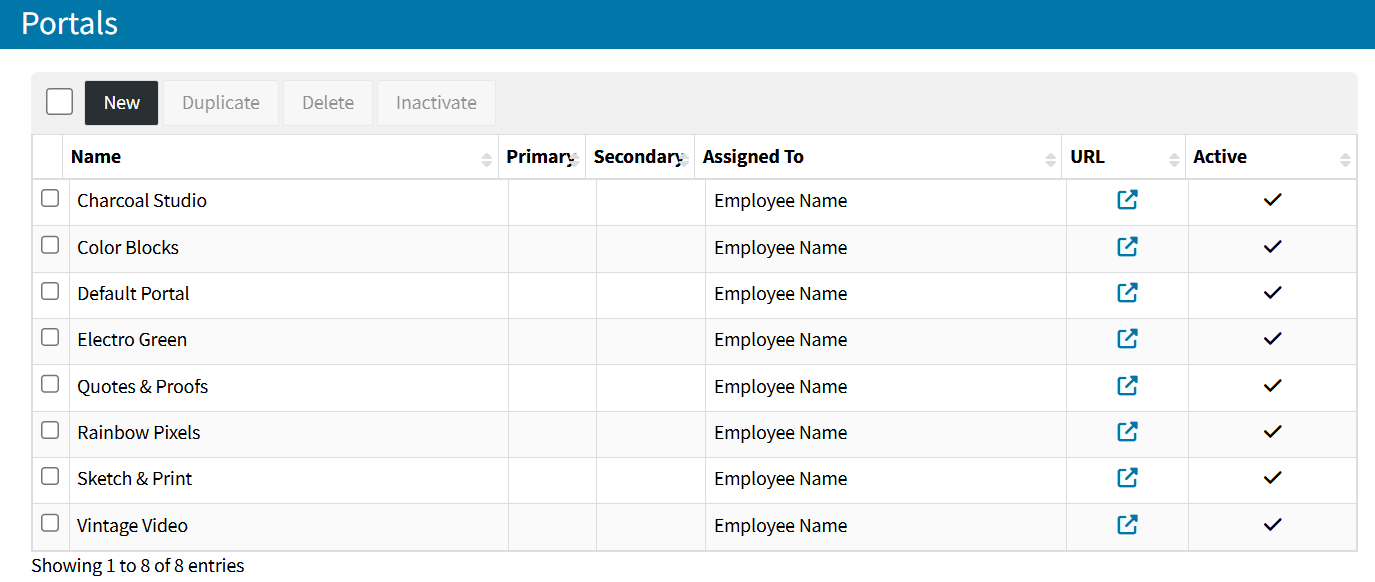
- From the Portal List, clicking on the URL column icon of the desirable Portal will open a new browser tab to the Portal.
- A Browsable portal can be previewed without logging in.
- A Non-Browsable portal will take you to the login page.
- When logging in as a DocketManager User, be sure to utilize your DocketManager Login Credentials, to have Administrative Control.
- When logged in with your DocketManager Credentials:
- You will be able to assume the identity of any User that has access to the Online Ordering Portal.
- You will be able to switch to any Portal the contact who's identity you are assuming has access to.
- When logged in with your DocketManager Credentials:
Learn more about Assuming Identity
Learn more about Portal Testing
CREATING A NEW PORTAL
- Click the {New} button
- Enter a Portal Name
- Select desirable Portal Setup Configurations, then click the {Save} button
- Portal Setup Configuration Options are defined at the bottom of this article
CUSTOMIZING A PORTAL
- Open Portal Setup by clicking on the Portal Name
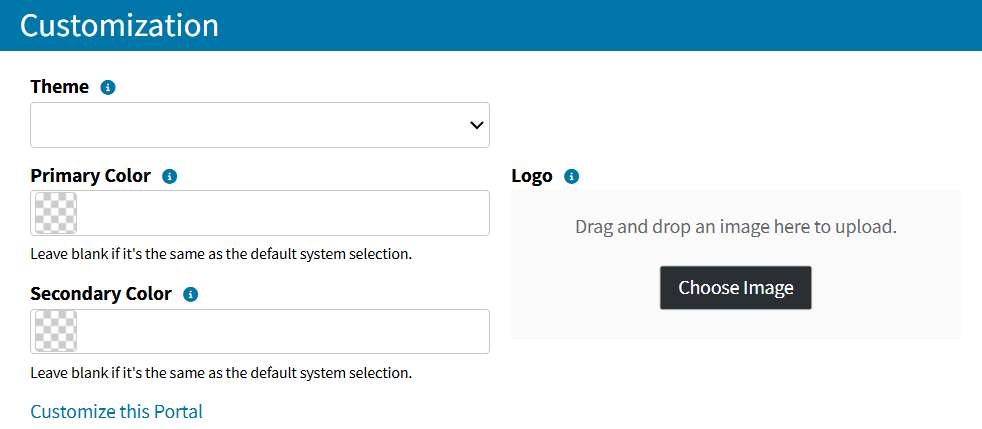
- Click on {Customize this Portal} below the Primary/Secondary Color within the Customization section
- The fields will appear for customizing the Homepage HTML, CSS, JavaScript, Checkout Terms & Conditions, Checkout Success Message, Quote Approval HTML, Proof Approval HTML and Button Labels
REVERTING PORTAL CHANGES TO A PREVIOUSLY SAVED VERSION
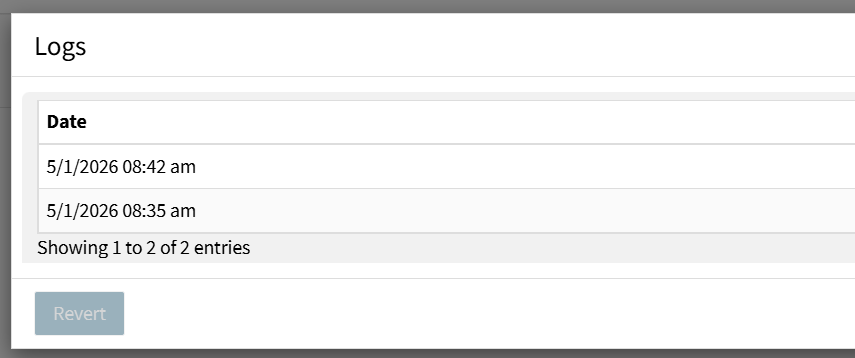
Utilizing Portal Logs you can review edits that were made to a Portal and Revert to a previously saved version.
- Open a Portal Setup by clicking on the Portal Name
- Hover over the {Actions} dropdown menu in the top right corner of the screen, and select {Logs}
- Select one of the Previous Saved Versions of this Portal Setup by clicking on the Date, to preview the previous version
- Click between Dates to identify the desirable Version to Revert back to
- Click {Revert} to Revert to a previously saved version
DUPLICATING A PORTAL
Once a Portal exists, it can be duplicated by selecting the Portal from the Portal List and clicking the {Duplicate} button.
DELETING A PORTAL
Once a Portal exists, it can be deleted by selecting the Portal from the Portal List and clicking the {Delete} button.
PORTAL SETUP CONFIGURATION OPTIONS
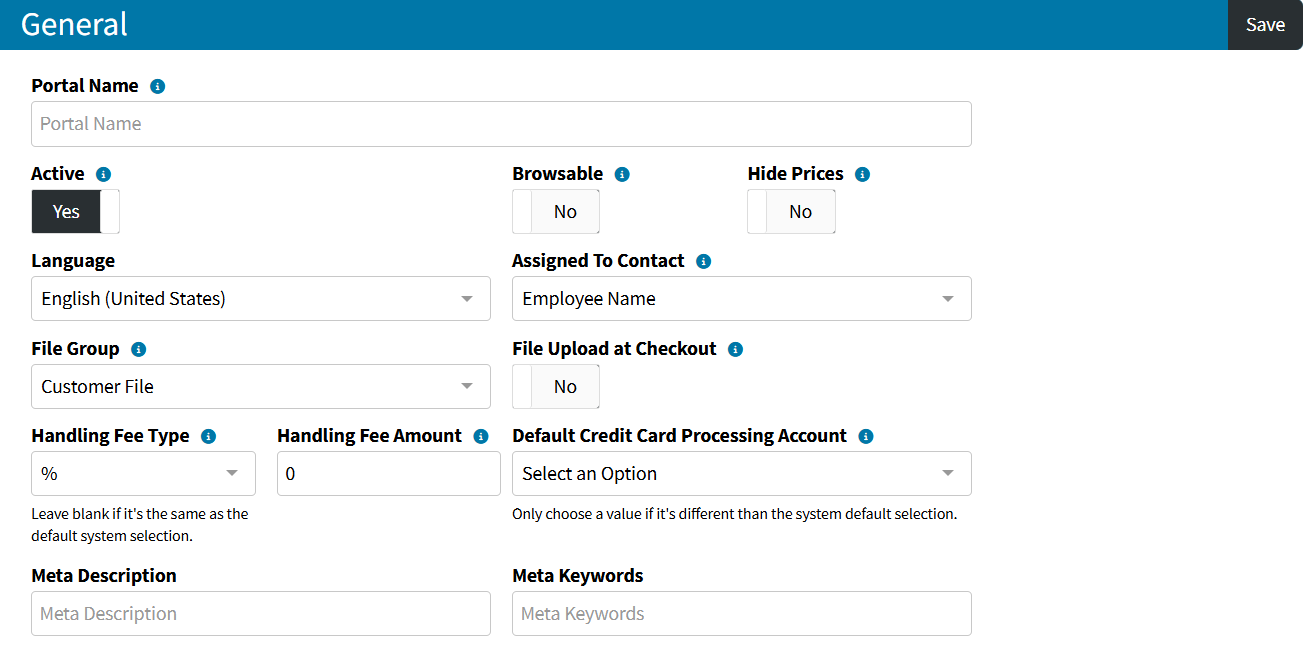
General
- Portal Name - Internal Name for the Portal that will be used throughout the system.
- URL - System generated Unique URL for the Portal.
- Active - Toggle switch to activate or deactivate a Portal.
- Browsable - Enable to allow Public viewing access to the Portal and its Public Products.
To have a Browsable Portal, {Show Registration} needs to be Enabled- Hide Prices - Enable to hide product pricing on a Public Portal while users are not signed in.
After signing-in, product price visibility is handled through a User's Assigned Security Role
- Hide Prices - Enable to hide product pricing on a Public Portal while users are not signed in.
- Language - Switch the Portal to an alternative language.
- Assigned To Contact - The System User that all New Order Items ordered online will be assigned to.
- File Group - The File Group to be assigned to files uploaded online to a Product or at Checkout.
- File Upload at Checkout - Enable to allow file uploads at the Checkout Page related to the Order.
- Handling Fee Type - This is the type of value that will be added to Shippo's shipping cost.
- Handling Fee Amount - The value to be added to Shippo's shipping cost.
When Blank, usage defaults to Settings > Dockets > General > Order Defaults > Default Handling Fee
- Handling Fee Amount - The value to be added to Shippo's shipping cost.
- Default Credit Card Processing Account - When offering credit card payment options online, the selection made is the Portal's Default Credit Card Processor that will be prefilled when creating credit card payments or storing profiles.
The selection can be changed on the credit card modal
The hierarchy for this value is Credit Card Modal > Contact > Customer > Portal > System Default - Meta Description - An HTML element that provides a concise summary of a web page's content. While not a direct ranking factor, it is used by search engines to display snippets in search results to encourage user clicks.
- Meta Keywords - An HTML tag used to provide a list of relevant keywords for a Portal.
Learn more about Credit Card Payment Integrations
Registration
- Show Registration - Enable to display a registration button on the Portal. When disabled the Registration Page can still be accessed directly via the Portal's Registration Page URL.
Required for a Portal to be Browsable - Lock Registration - Enable to lock access to the Registration Page.
- Register Users Under Specific Customer - Choose to register all New Users under a specific Customer.
Learn more about Portal Access Configurations if you want to utilize a unique URL containing a CustomerID to specifically direct certain contacts to a registration page that registers the new user under a specific Customer, while retaining all other Portal Registrations under New Customers - New Customer Defaults - Select a Customer Default that is to be applied to Newly Registered Users.
Learn more about Customer Defaults
Communications
- Order Confirmation Email - The Canned Email that will be utilized after a successful checkout.
- Order Sent for Approval Email - The Canned Email that will be sent to the user requiring a shopping cart approval.
- Order Needs Approval Email - The Canned Email that will be sent to the approver of a shopping cart.
- Order Rejected Email - The Canned Email that will be sent when a shopping cart is approval is denied.
- Password Reset Email - The Canned Email that will be utilized when a user requests to reset their password.
- Registration Confirmation Email - The Canned Email that will be used when a new user registers.
- Receipt Email - The Canned Email that will be used when sending receipts.
- Auto Send Receipts - Choose to automatically send receipts for online payments.
- Admin Email Address - List of email addresses that should receive a copy of all Portal Registration and Order Confirmation Emails.
- From Email Name - The name that online ordering emails should appear to be from.
- From Email Address - The email that online ordering emails should appear to be from.
Learn more about Canned Emails
Learn more about Shopping Cart Approvals
Customization
- Theme - The Theme that will apply a base layout and design style to the Portal.
Learn more about Themes - Primary Color - The Portal Default Primary Color.
The hierarchy for this value is Customer > Portal > Theme - Secondary Color - The Portal Default Secondary Color.
The hierarchy for this value is Customer > Portal > Theme - Logo - The Portal Default Logo.
The hierarchy for this value is Customer > Portal - {Customize this Portal} - The fields will appear for customizing the Homepage HTML, CSS, JavaScript, Checkout Terms & Conditions, Checkout Success Message, Quote Approval HTML, Proof Approval HTML and Button Labels.
Additional Fields
- Order Name - Allow or Require users to input an Order Name at Checkout to Replace or Amend to the System Online Order Order Name.
- Enabled - Choose weather to utilize this additional field at the Checkout Page of this Portal.
- Required - When set to Yes, this field must be entered in order to checkout.
- Label - This is the field Label displayed to the user.
- Behavior - This selection determines if the input will Replace or Amend to the end of the Order Name.
- Message - This is the prompt message displayed to the user online within the field.
Pages
Create Custom Online Ordering Portal Pages such as About Us, Contact Us, Our Team, FAQ, or Testimonials.
- {New} - Opens the Custom Page Configuration Modal Window.
- Name - An Internal Name for your Custom Page.
- Published - Determines if this custom page can be utilized in the Navigation Menu, and weather the Customer Page URL is accessible.
- Meta Description - An HTML element that provides a concise summary of a web page's content. While not a direct ranking factor, it is used by search engines to display snippets in search results to encourage user clicks.
- Meta Keywords - An HTML tag used to provide a list of relevant keywords for a Portal.
- Insert Form - Select from Custom Forms to be Inserted onto the Custom Page.
- HMTL Content - A container for the HTML Code that will be utilized to generate the Custom Page.
- {View Page} - Once a Custom Page exists, it can be viewed by Editing the Customer Page, and clicking {View Page} in the top-right corner of the Custom Page Configuration window.
- {Delete} - Once a Custom Page exists, it can be deleted by selecting the Custom Page from the Custom Page List and clicking the {Delete} button.
Learn more about System Pages
Navigation
Customize your Portal Navigation Menu content. Add additional System or Custom Pages, and arrange their display order by dragging and dropping left of their checkbox.
In order for Users to see some of the System Pages that have been added to Navigation they will need Online Security Role Permissions to access restricted System Pages
Learn more about Online Security Roles
- {New} - Add a New Navigation Menu Option.
- Name - External Navigation Menu Option Name visible on the Online Ordering Portal Navigation Menu.
- Type - Choose from directing to System/Custom Pages, or a URL of your choosing.
- Page - A Selection of System or Custom Pages to add to the Navigation Menu.
- URL - Input a destination URL to direct users to.
- Open in a New Tab - Toggle Yes, to open the destination URL in a New Browser Tab.
- {Delete} - Once a Navigation Menu Option exists, it can be removed by selecting the Navigation Menu Option from the Navigation Menu Option List and clicking the {Delete} button.
Products
Manage Product Portal Access and arrange their display sort order.
- Online Display Order - Select a method for sorting product display order.
- {Add} - Opens the Product Selection Modal Window, allowing you to filter, search, and select Products to be given Access to the Portal.
- {Remove} - Once a Product is assigned Access to the Portal, the Product's Access can be removed by selecting the Product from the Product List and clicking the {Remove} button.
- {Sort} - Opens the Product Sort Order Modal Window, allowing you to drag and drop Products into desirable sort order.
Items can only be rearranged within their existing Product box. Items cannot be moved between product boxes.
Contacts
Manage Contact Portal Access
- {Add} - Opens the Product Selection Modal Window, allowing you to filter, search, and select Products to be given Access to the Portal.
- {Remove} - Once a Contact is assigned Access to the Portal, the Contact's Access can be removed by selecting the Product from the Product List and clicking the {Remove} button.
Learn more about Online Ordering Products.