
 create new ticket
 check ticket status
DocketManager pricing can be broken down into three key elements; Stocks, Presses, and Department Items. Department Items encompass everything from static Preflight charges to Graphics to Price Per Piece or Hourly charges for Finishing.
- If this is your first time setting up a Department Item, the Department Item Setup Article can guide you through the Pricing Structure and Lock To Formulas of Department Items.
- Learn more about the System Lock To Formula Calculations.
- The Lock To Formula becomes the "Piece" in the [Cost/Price Per Piece] fields.
- The Lock To Formula becomes the "Pieces" in the [Pieces Per Hour] field.
- When a Lock To Formula is selected you typically utilize any combination of Cost and Price Scales in addition to a Setup Cost and/or Price.
- When no Lock To Formula is selected you typically utilize Setup Cost and/or Setup Price for a Static Charge.
- There could be an instance where you need to charge a Per Piece or a Hourly Rate for an activity that is unrelated to a possible Lock To Formula, where a Lock To Formula would not be selected but the combination of Cost and Price Scales in addition to a Setup Cost and/or Price would be utilized and a manual [Quantity] field overwrite of the Department Item would occur at the Quote/Order Item Level.
- The Lock To Modifier dropdown menu option won't have any impact onto the Department Item Pricing if no Modifier Amount is entered. Lock To Modifiers are utilized when you want to modify your Lock To Formula output by a defined multiple.
- Setup Time is charged based on the utilized Price Per Hour Scale.
- Department Item Waste will add additional Press Sheet Waste to the Quote/Order Item, no matter the Lock To Formula selected.
Settings > Department Items > {New}
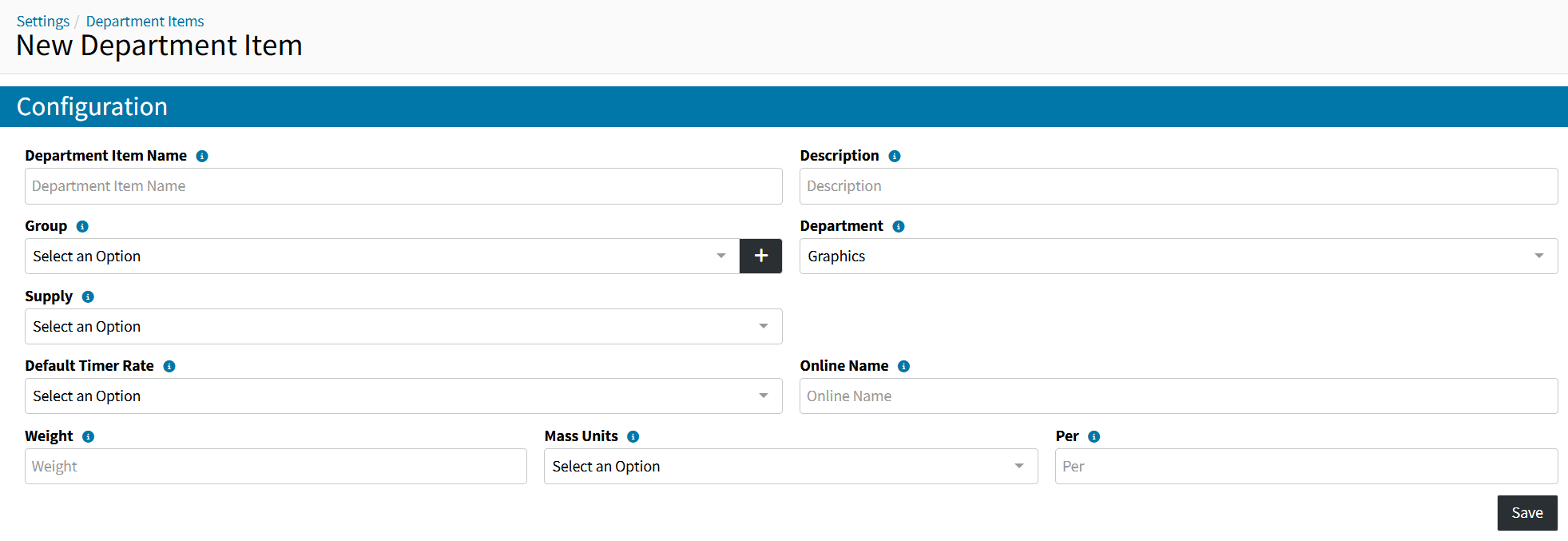
CONFIGURATION
- Department Item Name - The Name of the Department Item that will be displayed throughout the system, typically the name of the activity being performed or the charge that is being applied
- Description - A detailed or instructional message about the Department Item, typically utilized to communicate internal details to the users of this Department Item
- Group - A customizable field that allows you to group Department Items together to organize them and easily search and filter for them later, use the {+} icon to add a New Department Item Group
The full list of Department Item Groups can be located in Settings > General > Department Item Groups. - Department - A preset dropdown of selections that dictate where this Department Item charge will fall in the pricing table of a Quote/Order Item
- Supply - The Supply that will be depleted based on the calculated quantity of the Department Item
Learn more about Supplies. - Default Timer Rate - The Default Timer Rate to be selected when a user starts a Timer for this Department Item within an Order Item
Learn More About Timers. - Online Name - A customer friendly Department Item Name to be displayed online when offering this Department Item as a Product Attribute
Learn More About Product Attributes. - Weight - The weight based on the [Per] Field
- Mass Units - The unit of measure for the weight
- Per - The number of Lock To Pieces the Weight is based on
Weight, Mass Units and Per, allows you to add weight to the Department Item to be factored in when calculating shipping rates.
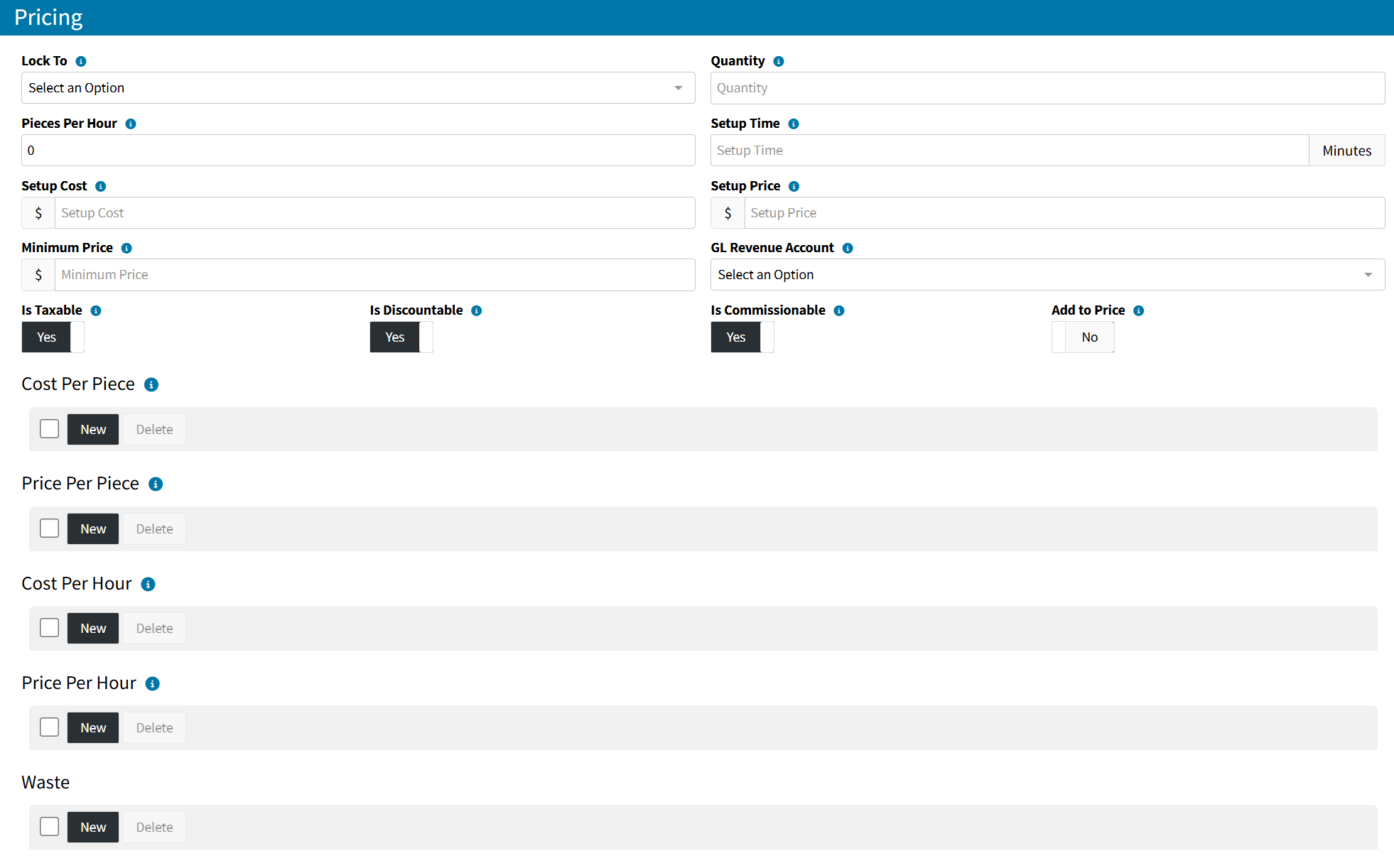
PRICING
- Lock To - The Lock To Function determines which field or set of fields the pricing locks to
- Quantity - Lets you set a manual quantity when no Lock To is selected
- Lock To Modifier - The Lock To Modifier dropdown menu option won't have any impact onto the Department Item Pricing if no Modifier Amount is entered
- Modifier Amount - Enter a Lock To Modifier Amount to Modify your Lock to Formula Output by a defined multiple
- Pieces Per Hour - The number of Lock To Formula Quantity that can be completed in an hour
The Lock To Formula becomes the "Pieces" in the [Pieces Per Hour] field. - Setup Time - The number of minutes it takes to setup
- Setup Cost - A flat rate of the internal costs or setup cost
- Setup Price - A flat rate of the charge or setup charge
- Minimum Price - The Minimum Price to be charged when the combined total price of the Department Item doesn't exceed the Minimum Price
- GL Revenue Account - The GL Account the value of this Department Item will be assigned to
- Is Taxable - Determines if the Department Item contributes to the Taxable Total when associated with a Quote/Order Item
- Is Discountable - Determines if the Department Item Price is discountable when associated with a Quote/Order Item
- Is Commissionable - Determines if the Department Item contributes to the Commissionable Total when associated with a Quote/Order Item
- Add to Price - Department Items and Stocks by default add to Quote/Order Item Press Pricing. This toggle allows you to add the price of this Department Item to the price of an Online Ordering or POS Product that utilizes Product Determined Pricing
- Cost Per Piece Scales - The Internal Cost Per Piece
- {New} - Click {New} to add a New Cost Per Piece Scale
- Pieces Up To (and beyond, from previous scale level or 0) - Up to and Beyond this number of Pieces the defined [Cost Per Piece] will be utilized
- Cost Per Piece - The Cost Per 1 Lock To Formula Quantity
- {Delete} - Deletes the selected Cost Per Piece Scale
- {New} - Click {New} to add a New Cost Per Piece Scale
- Price Per Piece Scales - The Charge to the Client Per Piece
- {New} - Click {New} to add a New Price Per Piece Scale
- Pieces Up To (and beyond, from previous scale level or 0) - Up to and Beyond this number of Pieces the defined [Price Per Piece] will be utilized
- Price Per Piece - The Price Per 1 Lock To Formula Quantity
- {Delete} - Deletes the selected Price Per Piece Scale
- {New} - Click {New} to add a New Price Per Piece Scale
- Cost Per Hour Scales - The Internal Cost Per Hour
- {New} - Click {New} to add a New Cost Per Hour Scale
- Pieces Up To (and beyond, from previous scale level or 0) - Up to and Beyond this number of Pieces the defined [Cost Per Hour] will be utilized
- Cost Per Hour - The Cost Per Hour of running the defined [Pieces Per Hour]
- {Delete} - Deletes the selected Cost Per Hour Scale
- {New} - Click {New} to add a New Cost Per Hour Scale
- Price Per Hour Scales - The Charge to the Client Per Hour
- {New} - Click {New} to add a New Price Per Hour Scale
- Pieces Up To (and beyond, from previous scale level or 0) - Up to and Beyond this number of Pieces the defined [Price Per Hour] will be utilized
- Price Per Hour - The Charge Per Hour of running the defined [Pieces Per Hour]
- {Delete} - Deletes the selected Price Per Hour Scale
- {New} - Click {New} to add a New Price Per Hour Scale
- Waste Scales - Account for Wasted Press Sheets by adding Waste Scales based on Flat and/or Percentage amounts.
- {New} - Click {New} to add a New Waste Scale
- Press Sheets Up To (and beyond, from the previous scale level or 0) - Up to and beyond this Number of Press Sheets, this Waste Scale will be utilized
- Flat Waste - Number of Waste Press Sheets to be added
- Additional Overs - Percentage of the Quote/Order Item Press Sheets to be added as Waste
- {Delete} - Deletes the selected Waste Scale
- {New} - Click {New} to add a New Waste Scale
- Notes - Department Item Notes are only retained within the Department Item Setup Modal, most commonly utilized to communicate reasoning for current pricing, or to keep a note of pricing iterations
PRICE CHECK
Price Check Department Items, by inputting the quantity representative of your Lock To Formula, and the system will breakdown the Cost and Price Per Piece Total, the Hourly Total, and the Combined Total.