
 create new ticket
 check ticket status
This Article Has No Back Button, Please Toggle the Help Side Panel Off/On to Return to previous Help Page.
DocketManager lets you attach files to several items in the system to maintain records, content, or print elements.
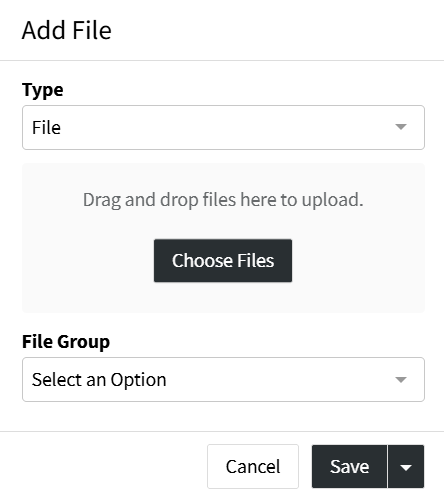
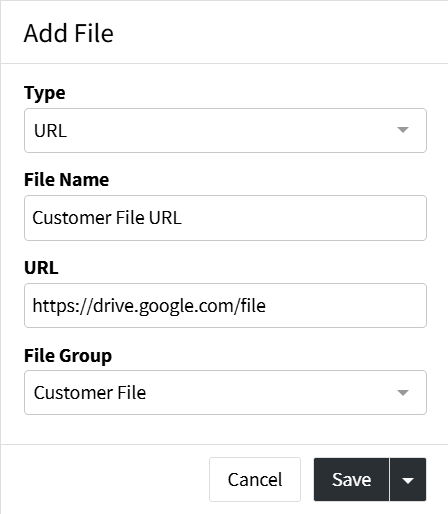
- Files can be uploaded from the your local device, or linked with a URL to an Online File Storage Solution.
ITEM FILE EXAMPLES
- Customers/Contacts - Tax Exempt Certificates, Business Contracts, PMS Color Standards, & W2P Images
- Vendors/Suppliers - Price Lists or Agreements, FSC Certifications, & Spec Sheets
- Quotes/Orders - Delivery List, Kitting Breakdown, Signed Quote Approval, & Scanned QA Checklist
- Quote Items/Order Items - Customer Supplied Files, Vendor Quotes, Proofs, Working Files, & Print Files
- Stocks/Supplies - Spec Sheets, FSC Certification, & Pricing Agreements
- Parent Product Containers/Product Items - Thumbnails, Preview Files, Print Files, Working Files
ADDING LOCAL FILES
 |
|
ADDING URL FILES
 |
|
FILE ACTION OPTIONS
Files in the system have some of the following action options to choose from depending on the File Group when hovering over the File.
- Thumbnails - Download / Copy File URL Link / Delete / Sort
- Preview Files - Download / Copy File URL Link / Delete / Sort
- Your URL Files - Edit / Download / Delete
- Your File Group Files - Edit / Download / New Proof / Hot Folder / Create Thumbnail / Copy File URL Link / Delete
- The New Proof Action will only be available for Local Files who's File Group has the Proof capability Toggled to "Yes" in Settings > Dockets > Order Options > File Group.
- The Hot Folder Action will only be available for Local Files who's File Group has the Hot Folder capability Toggled to "Yes" in Settings > Dockets > Order Options > File Group, And if the Order Item has a Press Associated with Hot Fodders Enabled, with a Hot Folder selected.
EDIT
- System or Local File Groups - Allows you to reassign the File Group.
- URL Files - Allows you to reassign the File Group and change the File Name.

DOWNLOAD
Downloads the File to your computer.

NEW PROOF
Create a new proof record.
Learn more about Proofing Order Items.

HOT FOLDER
Sends the file to the Hot Folder connected on the assigned Press.
Learn more about Hot Folders.

CREATE THUMBNAIL
Manually generate a thumbnail from the File.

COPY FILE URL LINK
Copies the URL of the File stored on DocketManager to your system clipboard.

DELETE
Deletes the File.

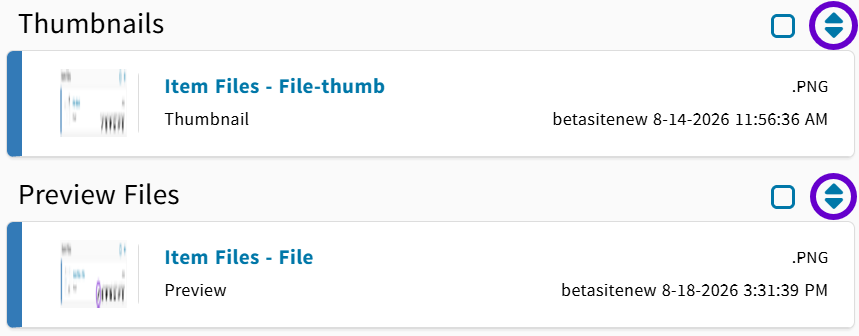
SORTING THUMBNAILS OR PREVIEW FILES
Clicking the {Up/Down Arrows} Icon at the top-right of the Thumbnails Block or Preview Files Block will allow you to define the sort order.
ACCEPTABLE FILE TYPES
The following file types are acceptable wherever files can be uploaded on DocketManager:
|
| Thumbnail File Types:
Preview File Types:
|