
 create new ticket
 check ticket status
Supplies are consumable items required for a job that you track inventory levels for, but that are not part of the base quote pricing configuration of Stock, Press, and Cutting. Supplies can be associated with Department Items to create depletion records and track usage.
- Examples: Coil Bindings, Binders, Step/H Stakes, or Easel Backs.
- Learn more about Creating Department Items.
CREATING A SUPPLY
Navigate To:
Inventory > Supplies > {New}
- Supply Name - Enter the Name of the Supply. This is the name that will appear throughout the system.
- Supplier Name - Select the Supplier you order the Supply from, or use the {+} icon to add a new Supplier. The full list of Suppliers can be found in CRM > Suppliers.
For more information, see Suppliers - Creating a New Supplier. - Supplier Code - The code the Supplier uses to identify the Supply when you order it
- Package Quantity - The number of pieces you receive when you order 1 package
- Location - Where the Supply is stored within your facility
- Minimum Level - The minimum on hand level for this Supply before it is listed as requiring a reorder
- Price Per - The quantity your purchase Cost is based on, typically the same as the Package Quantity
Click the {Save} button. Once the Supply is saved, the Pricing section will appear:
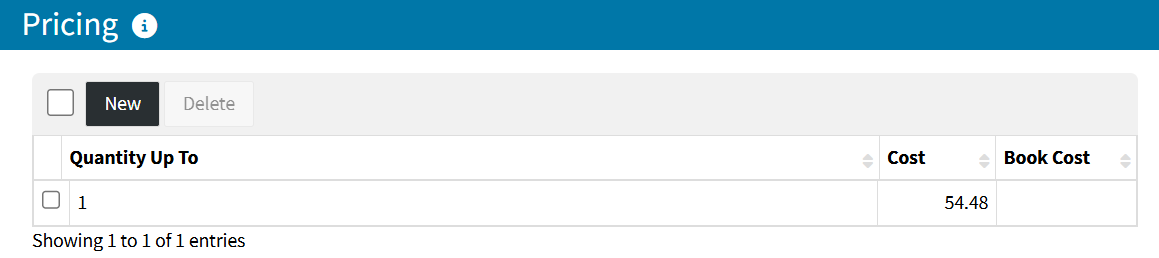
Click {New} under Pricing to enter the cost you pay the Supplier to purchase the Supply. Add multiple price scales if the Supplier offers tiered pricing.
- Quantity - If there is only one price scale, enter 1. Each scale applies from the previous scale's quantity (or 0) up to this quantity, and the highest scale applies to any quantity beyond it.
Example: 1st Scale: 500 (1 - 500), 2nd Scale: 1000 (501 - 1000 and beyond) - Cost - What you pay to purchase the Price Per quantity (e.g., $54.48 in the image above)
- Book Cost - Optional, for reference only. Enter the Supply's normal (book) cost, or leave it blank.
Click {Save} to add a single price scale, or {Save and Add New} to add another.
EDITING SUPPLIES
Once a Supply exists, it can be edited by clicking the Supply Name from the Supplies List, then hovering over the Actions dropdown and selecting {Edit}.
Inventory > Supplies > Click Supply Name > Actions > {Edit}
DELETING SUPPLIES
Once a Supply exists, it can be deleted by checking the box next to the Supply in the Supplies List, clicking the {Delete} button, and then clicking {OK} to confirm.
Note: The Inventory section and {Adjustment} button on a Supply only appear once a Purchase Order has been issued for that Supply.
Learn more about how to Create an Inventory Purchase Order with Supplies.