
 create new ticket
 check ticket status
Anyone that will be working in DocketManager is considered a User.
Users can be added or deleted from DocketManager in just a couple of steps.
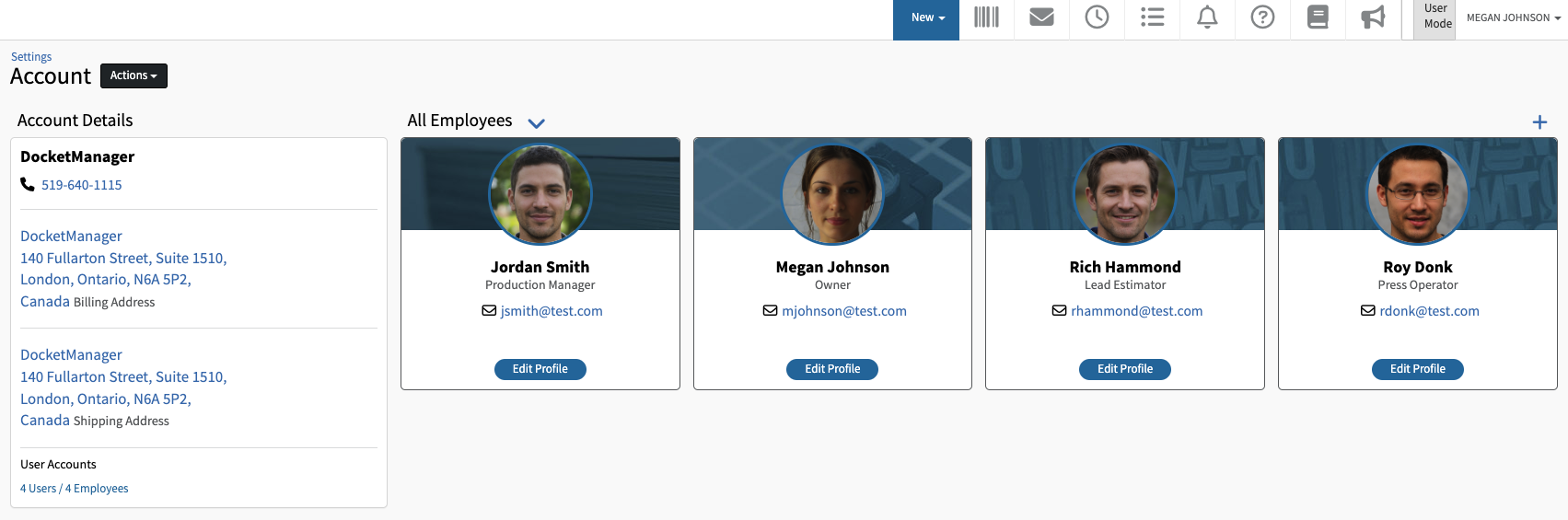
Option 1: Add User
- Settings > Admin > Account
- On the right hand side of the page click on the + icon
- Complete the General, Login, and Production sections
- Click Save
GENERAL
These settings are fairly self explanatory and are specific to the user.
LOCATION
These fields can be left blank for most users.
LOGIN
Role
Roles can be managed in Settings > Admin > Security
Username
This can be the users email address or a unique identifier
Password
Password length must be minimum 12 characters long
Users cannot reuse the same password they used the last 4 times
Password must contain both numbers and letters
Setting a username and password for a user will create a new active user. Adding another active user will increase the amount of your site's monthly billing. Your current User number can be found on your monthly invoice.
Selectable
To make this user selectable in system dropdown menus such as "Sales Rep", "CSR" or "Graphic Artist", make sure to toggle Selectable to Yes.
This toggle determines if the user is selectable in the From dropdown of an email sent out of DocketManager.
PRODUCTION
Production Queue Access
By default all Production Queues are available to a user, this can be adjusted by clicking on the x to the left of a queue name.
Active User Queue Enabled
The Active User Queue is an additional Production view option that displays order items specific to the user.
Active User Queue View Type
This is the view or look of the queue. This view can be managed in Settings > Dockets > Production > Views
ADDITIONAL EXPORTS/REPORTS
Additional Export Access
This field determines which Additional Exports the user has access to.
Learn more about - Additional Exports
Additional Report Access
This field determines which Additional Exports the user has access to.
Learn more about - Additional Reports
INTEGRATIONS
These fields are specific to SMTP settings for outgoing email and are not required to send email through DocketManager.
Learn more about - Google SMTP
Learn more about - Office 365 SMTP
PREFERENCES
Default to Item Edit Mode
Toggle to Yes to save time when editing quote, order, and product items.
Notifications / Emails
Notifications and Emails are available when an action occurs in DocketManager.
Learn more about - Preferences
Option 2: Delete User
- Settings > Admin > Account
- Click the Edit Profile button for the user profile you would like to remove
- Click Delete
- Confirm